Export templates
The app writes orders and new customers as files your ERP reads. The shape of those files is a Liquid template you can edit, so you can produce whatever your ERP already imports rather than writing a converter for it.
Edit templates in Settings → Data Integration → Export Profiles. Press Preview Sample to render the template you are editing against sample data: that is what your ERP would receive, and a template that will not render says so there rather than failing mid-sync in front of a customer.
Liquid works on the way in as well, though you will rarely need it: import is normally a matter of mapping columns to fields, and a template is only for a file whose shape the mapping cannot express. See “If your ERP cannot produce these column names” in the Connecting your ERP. The language, tags and filters are the same; what differs is that a transform must produce a JSON list of records rather than whatever your ERP wants.
Defaults for CSV, JSON and XML are supplied for both orders and customers. Start from the closest one. What each default produces can be downloaded from the file formats page.
The Liquid reference is four pages, and every example on them is checked against the app. The engine is not Shopify’s, and some of what Shopify’s Liquid offers is missing or behaves differently here, so start from these rather than from Shopify’s documentation:
- Liquid tags: loops, conditions,
assign,capture, whitespace control, and what the engine does not do - Liquid filters: escaping, dates, arithmetic and rounding, slicing, and the standard text filters
- Liquid objects: every property of an order, line item, customer and address, with its type
- Liquid recipes: one row per order, leaving out zero-quantity lines, a code for export orders, dates and settlement discounts
Changing a template, step by step
Open Export Profiles
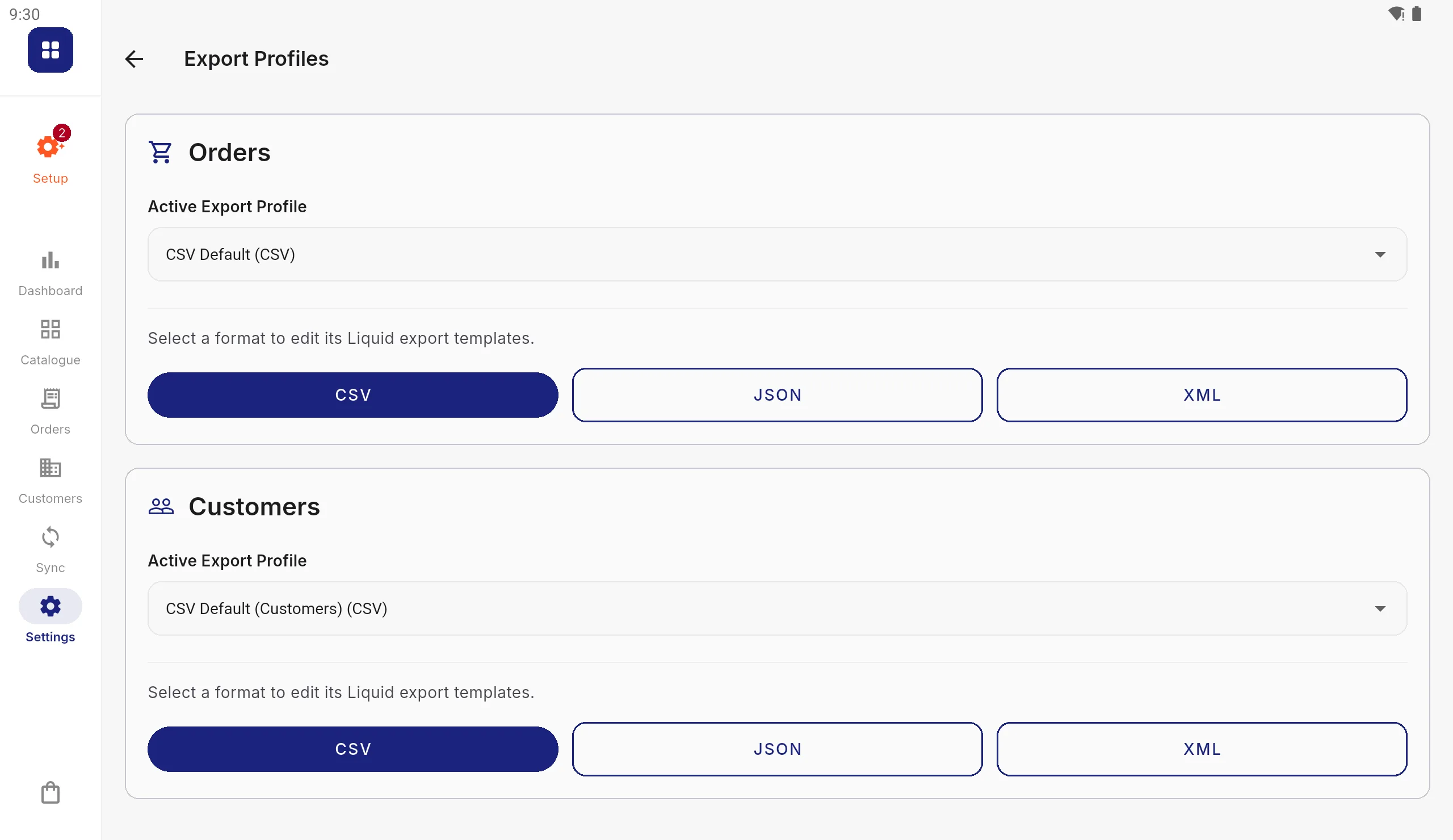
Go to Settings › Data Integration › Export Profiles. There is a card for Orders and one for Customers (new and changed customers), each showing its active profile. Press the format you want: CSV, JSON or XML.
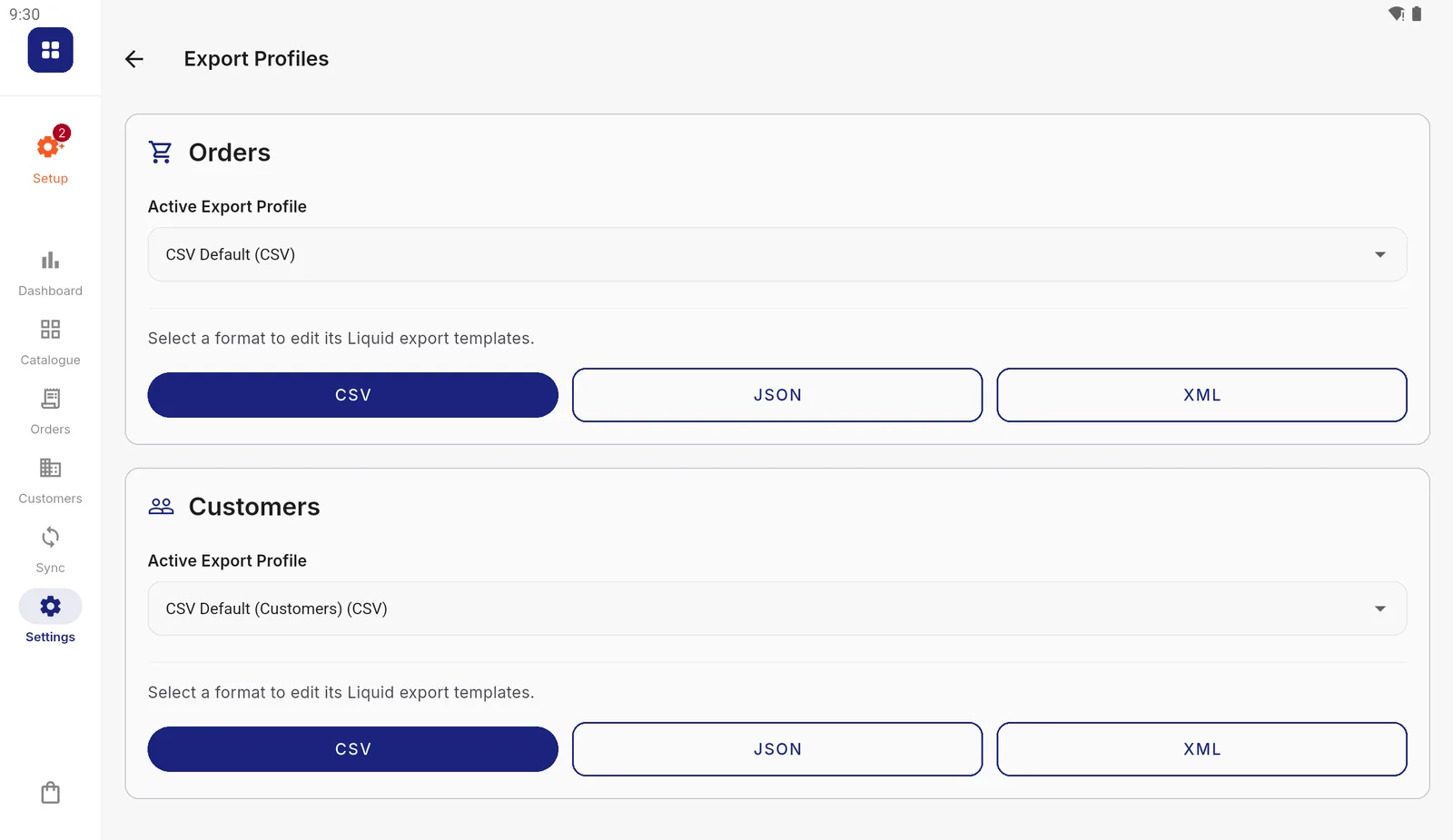
The active profile on each card is the one every export uses. Press Duplicate to Edit
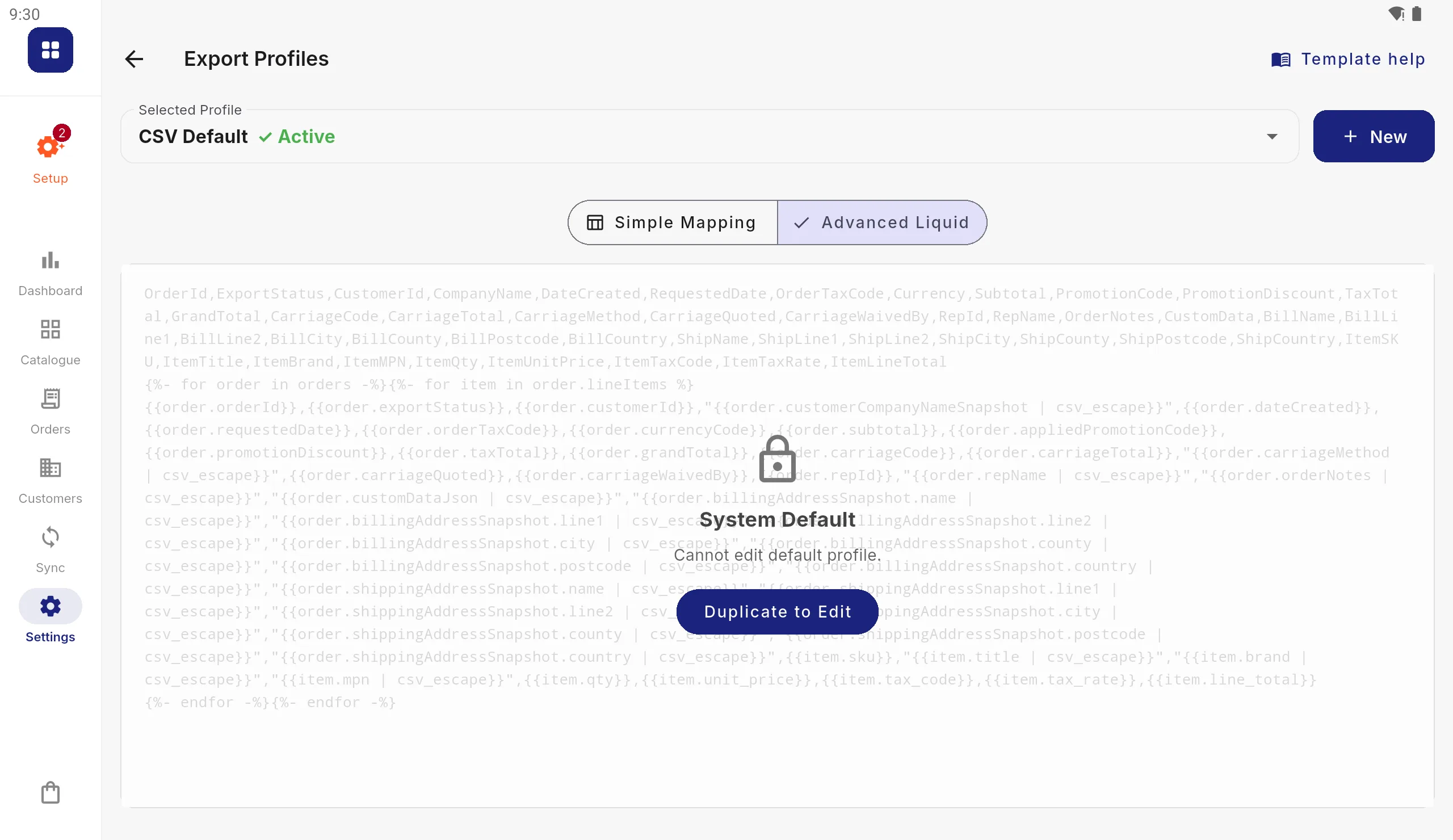
The default template opens, locked. Press Duplicate to Edit, name the copy (after your system, say) and press Duplicate.
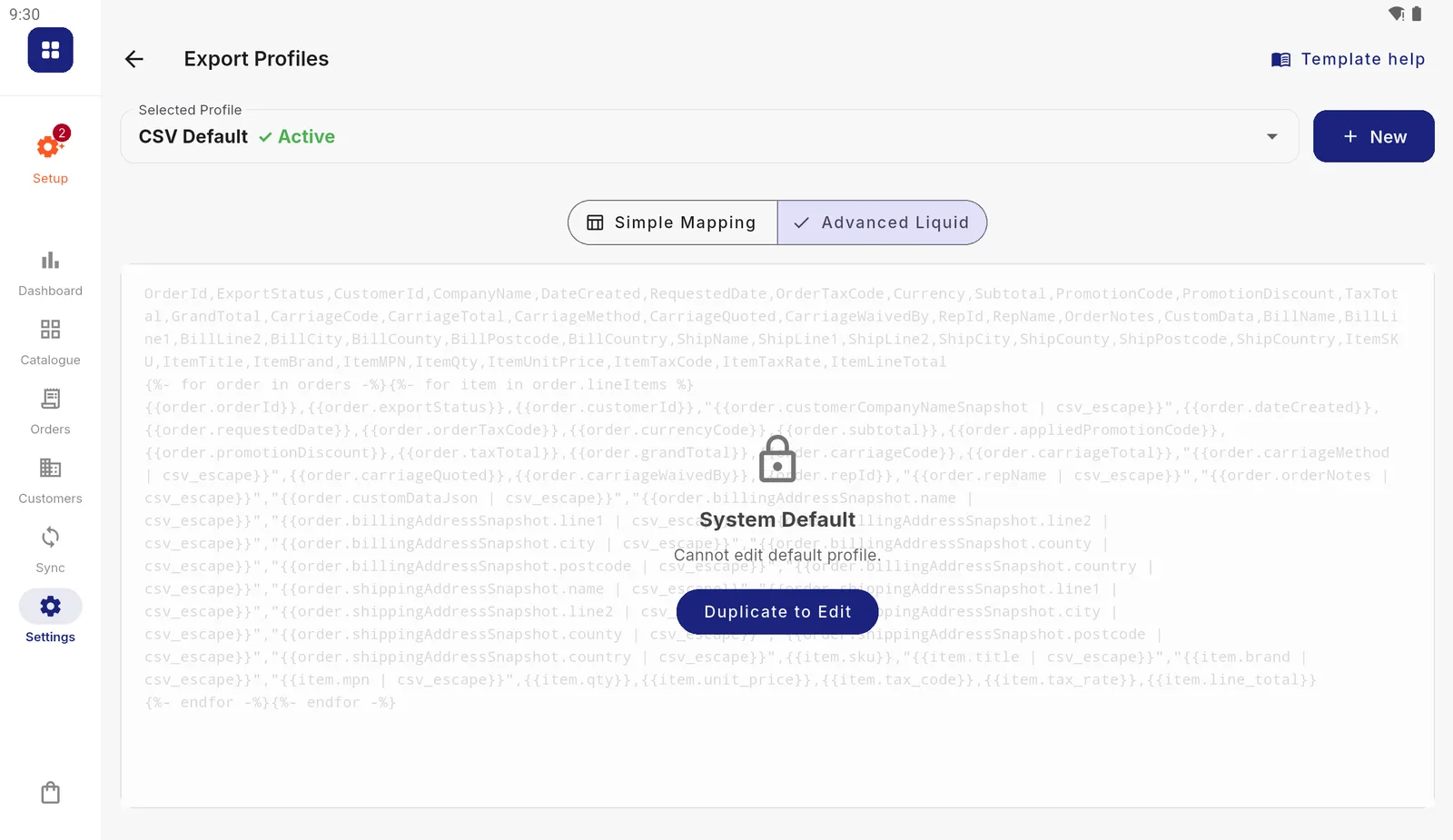
The shipped template. Defaults cannot be changed, so a later app update never overwrites your work. Rename columns, the simple way
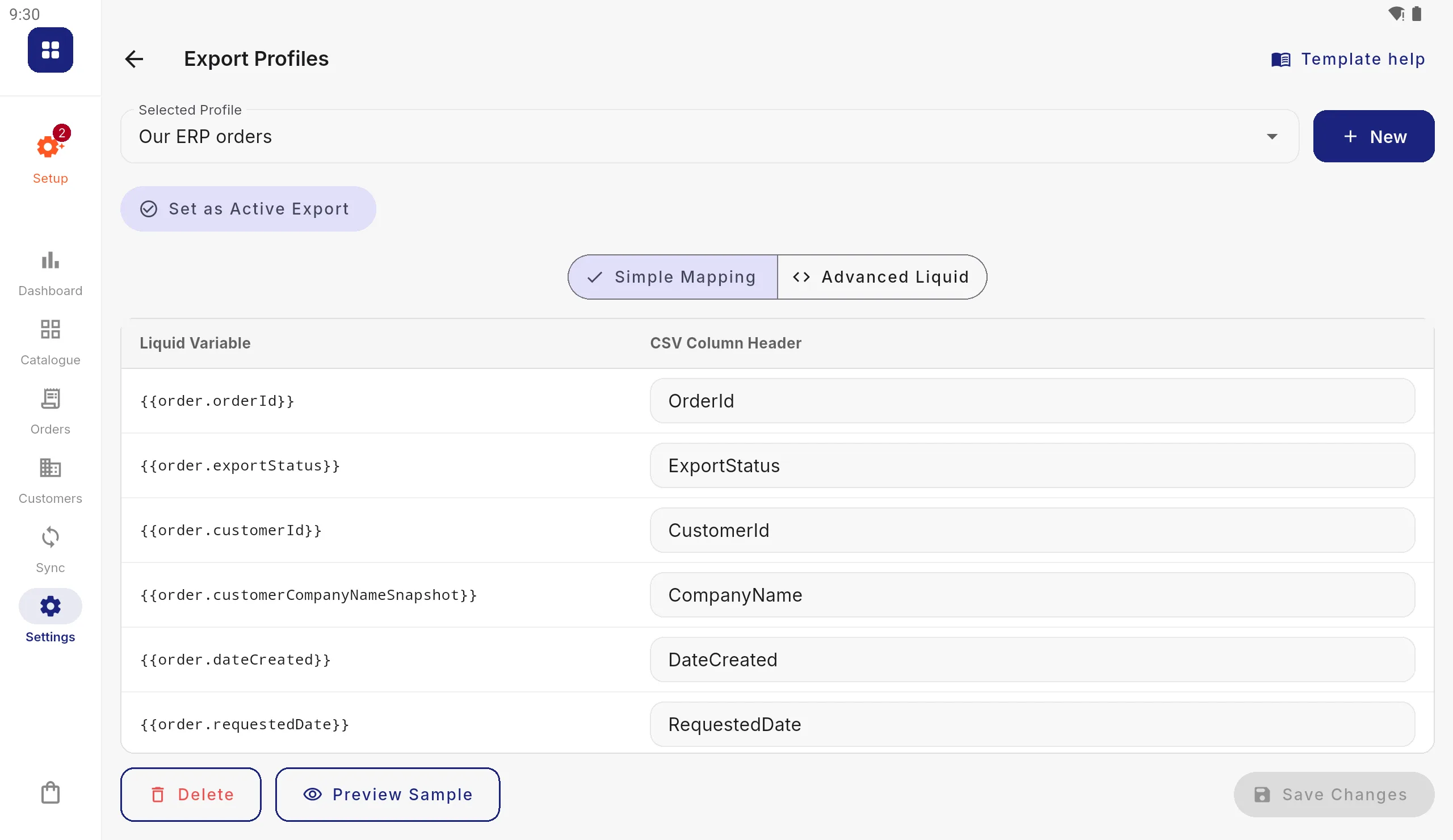
For a CSV that only needs different column names, choose Simple Mapping. Each field is listed with the column header it is written under; change the header and leave the template to the app.
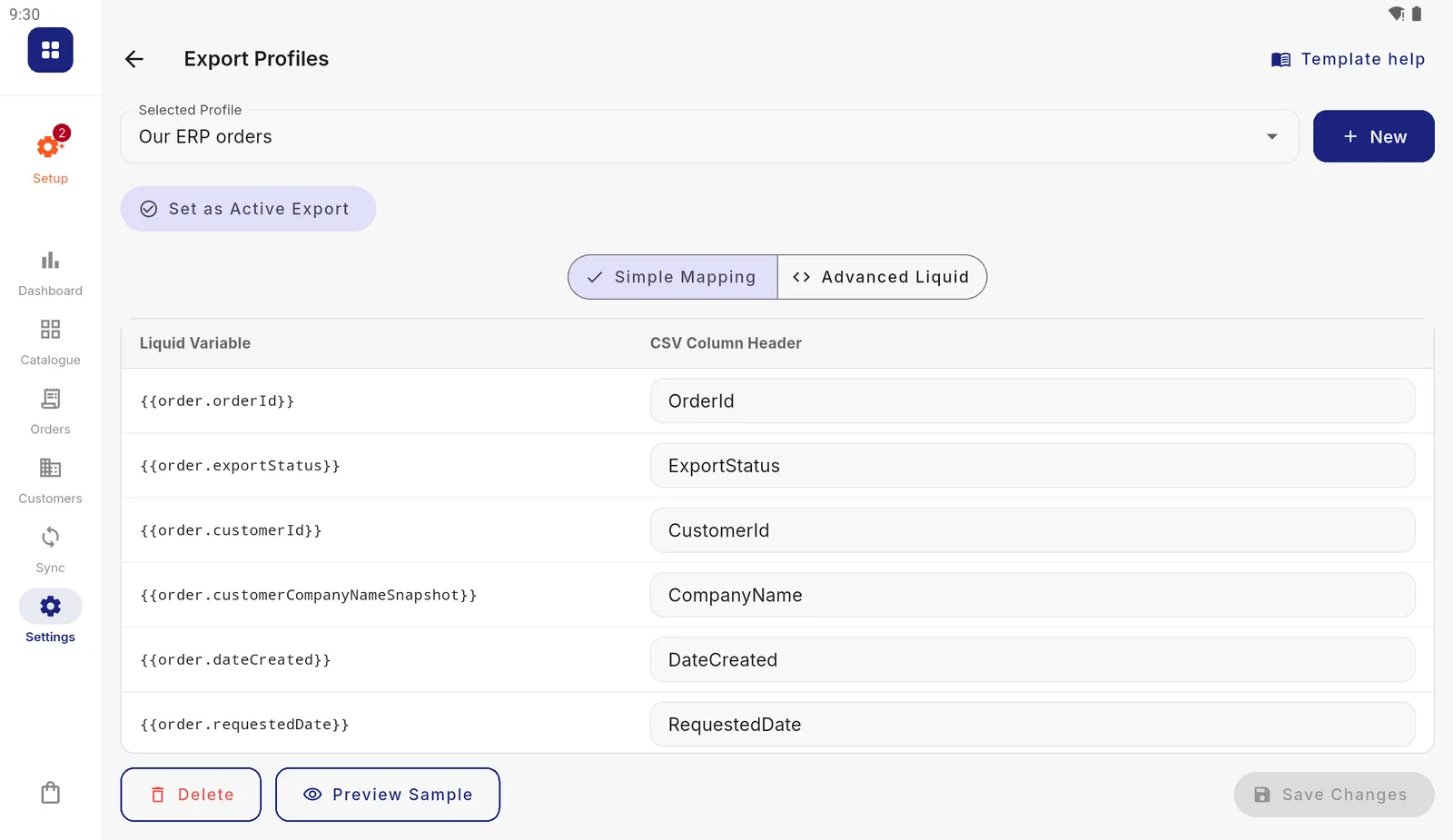
Simple Mapping: one field per row, and the header your ERP expects beside it. Or edit the template
Advanced Liquid shows the whole template, for anything beyond renaming: a different layout, JSON or XML, calculated values, rows left out. The rest of this page is the reference for it.
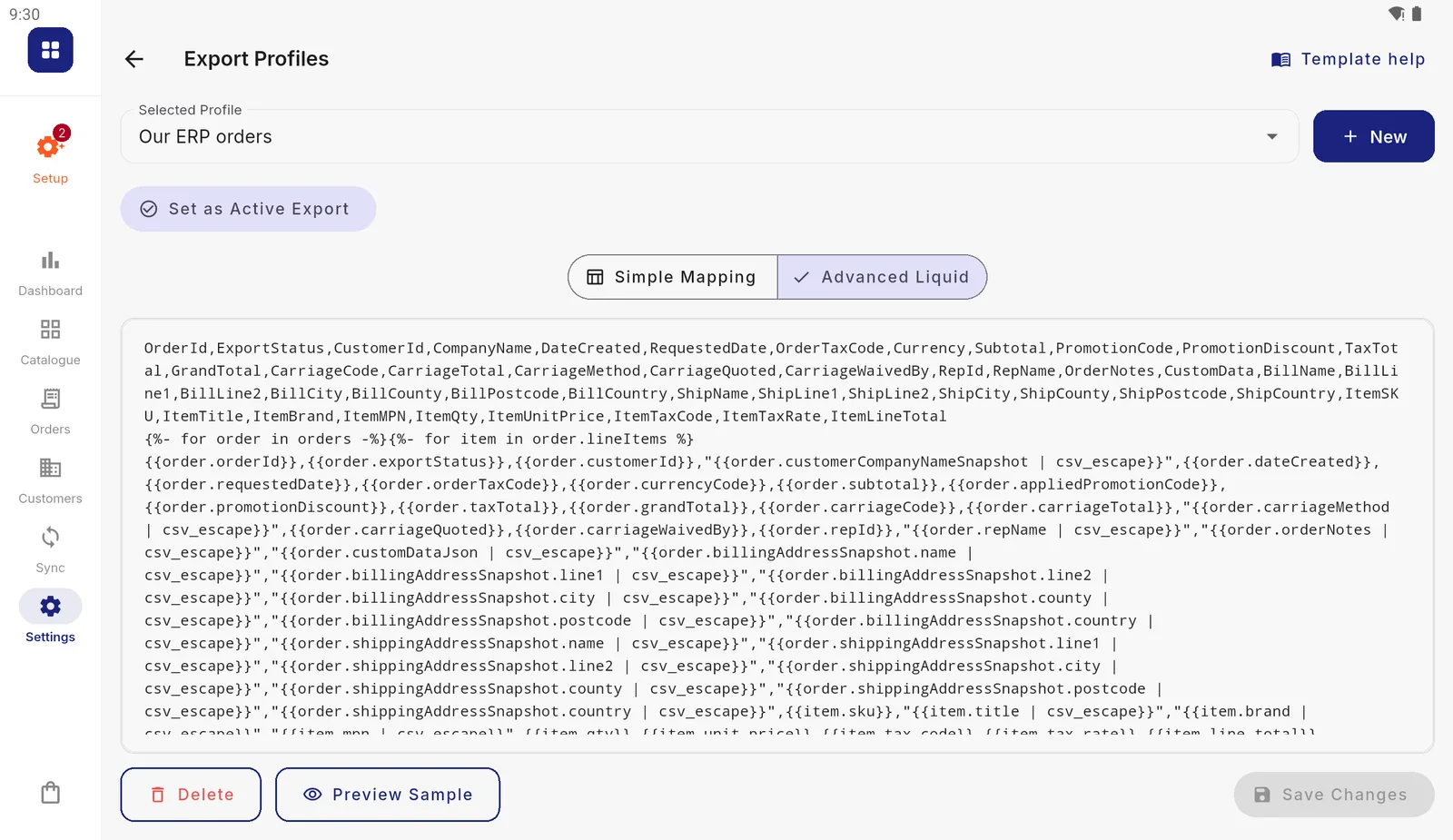
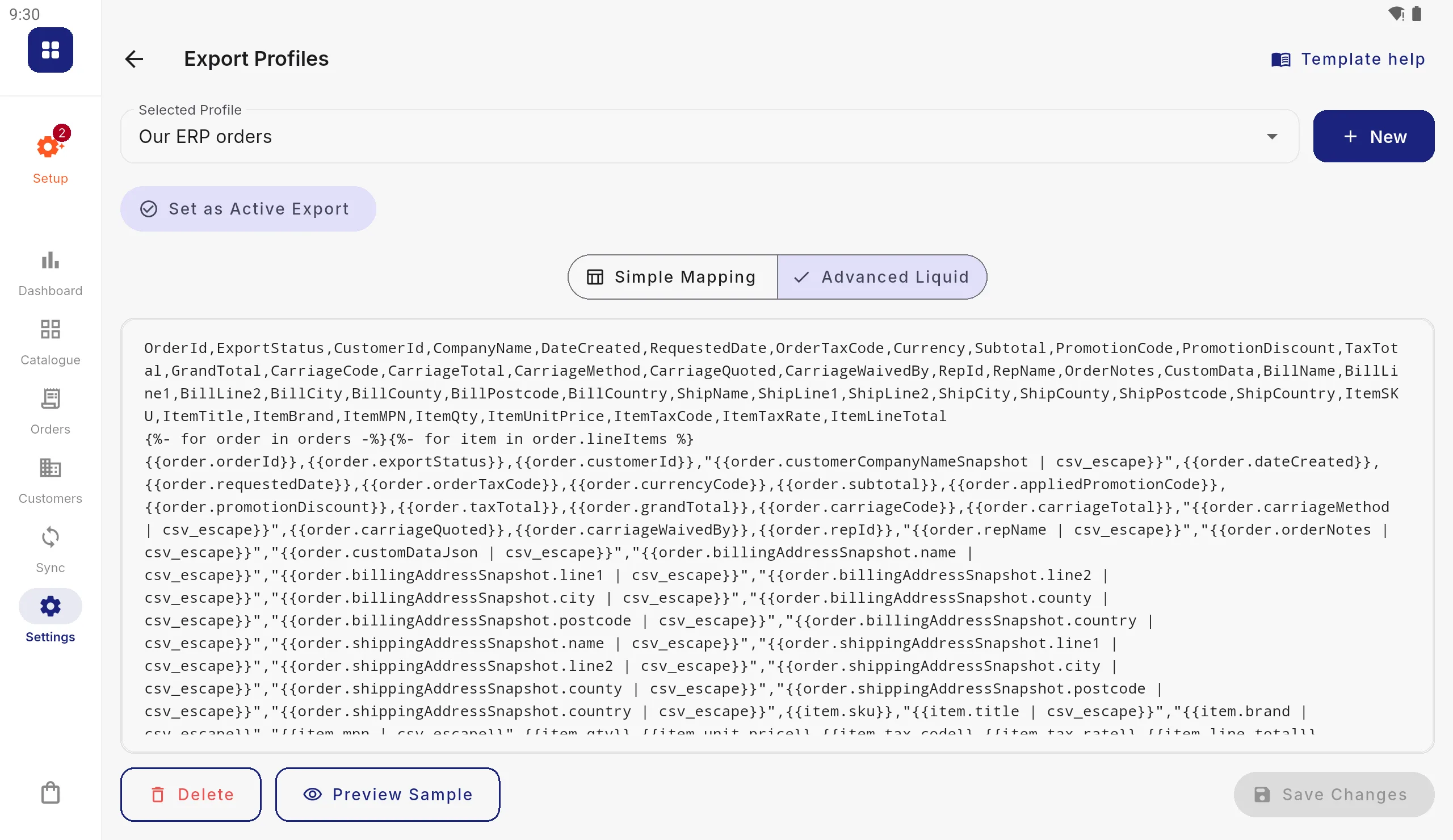
The header row first, then a loop over orders and their lines. Use Template help
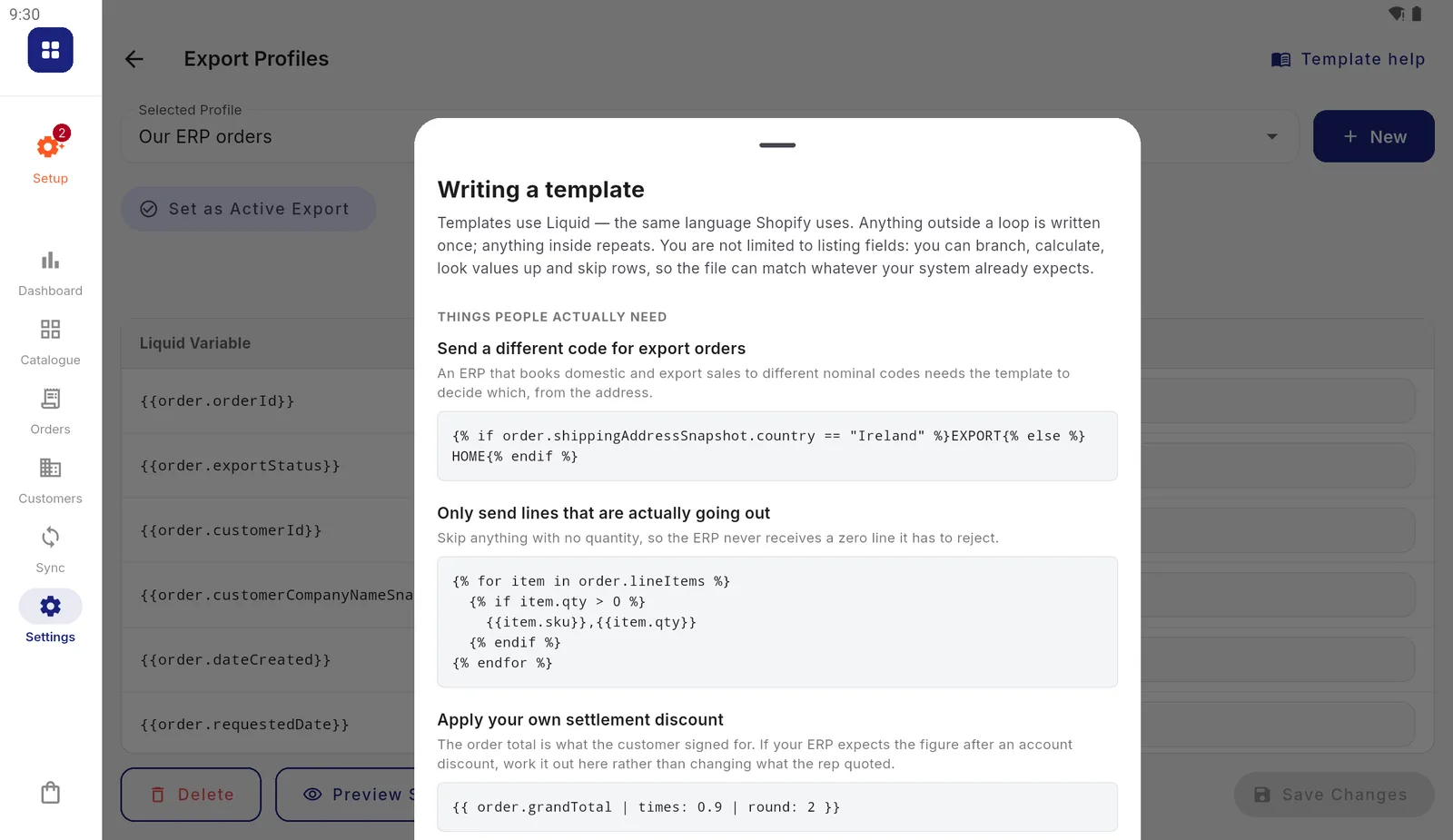
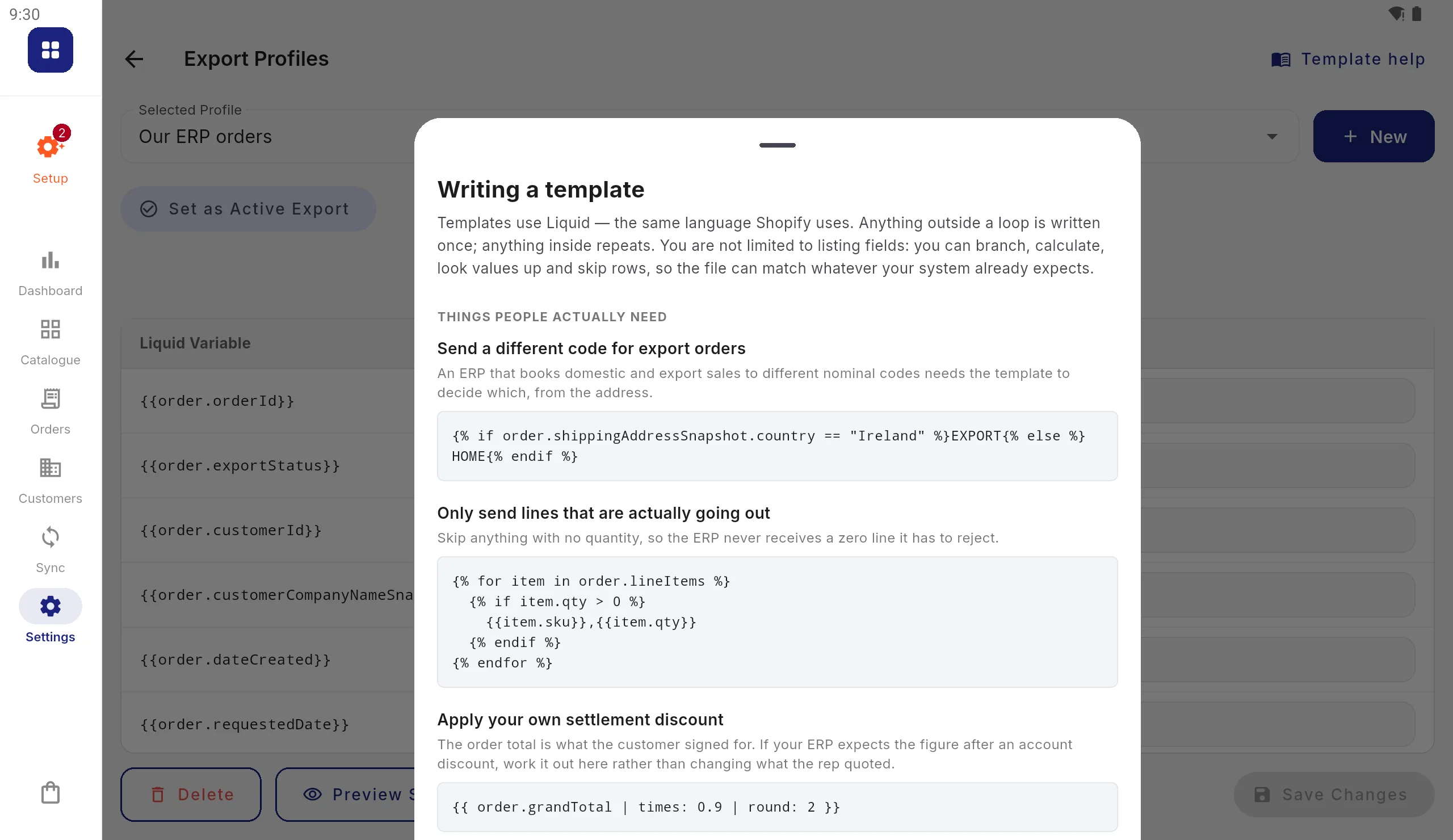
Template help, at the top right, lists the tags, filters and fields, with worked examples: a different code for export orders, leaving out zero-quantity lines, a settlement discount. Liquid recipes has more, each checked against the app.
Examples to copy into your own template. Preview, save, make it active
Press Preview Sample to see what your ERP would receive for one sample order with two lines. Press Save Changes, then Set as Active Export. The next sync sends orders through it.
The card shows which template is active.
1. Escaping: read this first
Exported values come from your own product and account data, where names like
Ben & Jerry's 500ml "Original" are entirely ordinary. Dropped into a template
unescaped they produce a malformed file: an extra quote ends a CSV field early,
an ampersand is invalid XML, and a quote or backslash breaks JSON. Your ERP then
rejects the file, or worse, imports it misaligned.
Three filters are provided. Apply the one matching the format you are writing:
| Filter | Use in | What it does |
|---|---|---|
csv_escape | CSV | Doubles " to "", per RFC 4180 |
xml_escape | XML | Escapes & < > " ' |
json_escape | JSON | Escapes quotes, backslashes, control characters and unicode |
"{{ customer.companyName | csv_escape }}"
<CompanyName>{{ customer.companyName | xml_escape }}</CompanyName>
"companyName": "{{ customer.companyName | json_escape }}"
Escaping is a filter you apply rather than something forced on every value,
because a template building JSON needs json_escape, not CSV doubling. The
filter does not add the surrounding quotes: your template supplies those, as
above.
A misspelled filter name is an error and Preview Sample will show it.
2. Order templates
The variable is orders, a list. Loop it:
{% for order in orders %}
{{ order.orderId }},{{ order.grandTotal }}
{% endfor %}
Order fields
| Field | Notes |
|---|---|
orderId | e.g. ORD-K7M3-0001: the Order Prefix in Business Rules, then the tablet’s ID |
exportStatus | Pending or Hold - Credit Review |
customerId | The account id, or a NEW- placeholder if created offline |
customerCompanyNameSnapshot | The name as it was when the order was taken |
dateCreated | yyyy-MM-dd HH:mm:ss |
requestedDate | Requested delivery date, blank if not set |
orderTaxCode | Order-level tax code override, if any |
currencyCode | e.g. GBP |
subtotal | Before discount and tax |
promotionDiscount | Order-level discount |
appliedPromotionCode | Blank if no promotion applied |
taxTotal | Tax on the goods and on the delivery |
grandTotal | Includes the delivery charge |
carriageCode | The delivery method’s code: what your ERP matches on |
carriageTotal | What was actually charged for delivery, before tax |
carriageMethod | The method’s name as the buyer was quoted it, e.g. Next day, before 12. Snapshotted, so renaming a method does not rewrite old orders |
carriageQuoted | What the method would have charged, present only when a rep agreed something else. Blank means nobody negotiated |
carriageWaivedBy | The promotion code that made delivery free, when one did. Blank otherwise |
repId, repName | Who took the order |
orderNotes | Delivery instructions |
signaturePath | A file path on the tablet, blank if unsigned. Not in the default templates and not offered by the editor: your ERP cannot open a file on a tablet. Still available to a template written by hand |
customDataJson | Whatever your own process put there |
poNumber | The customer’s PO number, blank if none was given |
billingAddressSnapshot | Object (see below) |
shippingAddressSnapshot | Object: where it is actually going |
lineItems | List (see below) |
isLastOrder | true on the final order, for separators |
Address fields
Both address snapshots carry name, line1, line2, city, county,
postcode, country.
{{ order.shippingAddressSnapshot.postcode }}They are snapshots, taken when the order was placed. A later address change never rewrites an order that has already been taken.
Line item fields
| Field | Notes |
|---|---|
sku, barcode, title, brand, mpn | As they were at checkout |
qty | |
unit_price | The price actually charged, after the price waterfall |
price_label | Which tier won: Sale, Volume Tier, a price list name, or Standard |
tax_code, tax_rate | tax_rate is a decimal: 0.2, not 20 |
line_subtotal | unit_price × qty |
line_discount | This line’s share of the order discount |
line_tax | Tax on what the customer actually pays for this line |
line_total | line_subtotal - line_discount + line_tax |
moq, order_multiple | |
primary_image | Local path |
isLast | true on the final line, for separators |
Every price and tax figure is snapshotted at checkout. A later catalogue sync never changes an order that has already been placed.
3. Customer templates
The variable is customers. These are customers created or edited on a tablet
that your ERP has not yet seen.
{% for customer in customers %}
{{ customer.accountId }},"{{ customer.companyName | csv_escape }}"
{% endfor %}
Available: accountId, companyName, contactName, email, phone,
mobile, website, vatRegistration, eoriNumber, taxCode, priceListId,
currencyCode, creditLimit, accountStatus, carriageCode,
internalNotes, billingAddress, shippingAddresses, isLastCustomer.
billingAddress is where the invoice goes, and the shipped templates write
it. It and each entry in shippingAddresses, which is a list, carry the same
fields an order’s address snapshot does (name, line1, line2, city, county,
postcode, country). Delivery addresses also carry isDefault, which marks the one a rep is offered
first. For separators between addresses use forloop.last: Preview’s sample
addresses carry an isLast, but a real export’s do not. Every customer
property, including the four Preview leaves out, is on
Liquid objects.
The balance has two names. creditBalance and currentBalance both work
and both give the same figure. The shipped templates use creditBalance; the
underlying field is currentBalance. Both are exposed so either resolves, but
prefer creditBalance for consistency with the defaults.
An accountId beginning NEW- means the rep created this customer offline.
Create the account, then echo that id back in OriginalAccountId on your next
customer import; see Connecting your ERP.
4. Separators, and the trailing comma problem
The commonest way to break a JSON or XML export is a trailing separator on the
last element. Use isLast and isLastOrder:
{% for item in order.lineItems %}
  { "sku": "{{ item.sku | json_escape }}", "qty": {{ item.qty }} }{% if item.isLast == false %},{% endif %}
{% endfor %}
{% unless forloop.last %} works too, in any loop; see
Liquid tags.
Always check a multi-line order in Preview Sample. The sample has two lines precisely so a missing separator is visible; with one line, a broken template looks perfectly fine.
5. One thing Preview cannot catch
A template missing its {% endfor %} renders anyway. The engine tolerates
it and emits the loop body once, so the output looks plausible while the
repetition your ERP expects is simply absent.
Misspelled filters, malformed tags, stray closing tags and an unterminated {{
are caught and reported. So are and, or and
contains, which this engine would get wrong: Preview and Save refuse
them and say what to write instead. A few other things written in Shopify’s
Liquid are still accepted without complaint and do something else here
(limit on a loop among them); they are listed under “What this engine does
not do” on Liquid tags.
So if Preview shows one row where you expected several, check your loop is closed before checking anything else.
6. Practical notes
File naming is not yours to set. Exports are named
orders_export_20260809_143207_T3F9.csv: entity, the timestamp of the
export, then a four-character code for the tablet that sent it, so two tablets
never write the same name. Names sort chronologically, and
orders_export_*.csv matches every tablet.
Blank is blank. A field with no value renders as an empty string, not
null. A CSV column stays present but empty; a JSON key gets "".
An unknown field renders blank rather than failing. {{ order.nonsense }}
produces nothing at all: no error, no warning. Preview Sample showing an
unexpected gap is the only signal you will get, so check your spelling against
the tables above.
Test with the real thing before trusting it. Take one order on a tablet, sync, and put the resulting file through your ERP’s importer. The sample is representative, but your ERP is the only judge of whether the file is right.