Send orders to Google Drive
Google Drive is for orders going out, and only for that. Drive cannot supply a catalogue, customers or prices to the tablet. A tablet that sends to Drive still receives from a folder on the tablet or an FTP or SFTP server, so set one of those up first.
Use Drive when the person who collects orders works from Google Drive, and wants each order to appear there as a file without anyone running a server.
Why Drive is orders out only
When you sign in, the app asks Google for access to the files it creates itself, and nothing else. It cannot see anything else in your Drive: not your documents, and not a catalogue file somebody else puts in a Drive folder, even one the app made. That is a deliberate limit, and it is why signing in asks for so little. The app can therefore write orders into Drive but cannot read your catalogue from it.
Step by step
Open the Google Drive page
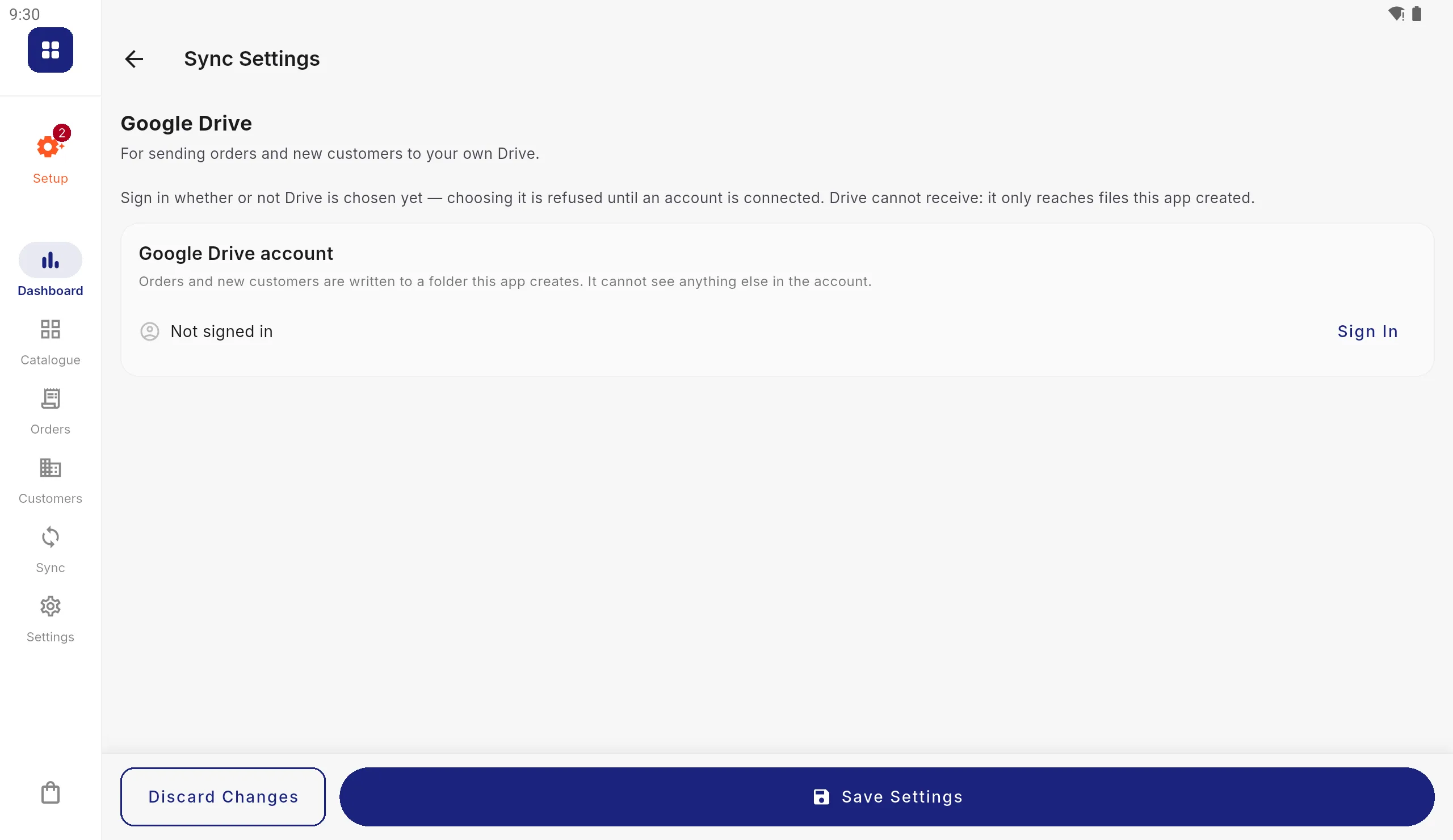
Go to Settings › Data Integration › Sync & Integration › Connection details › Google Drive. It says Not signed in.
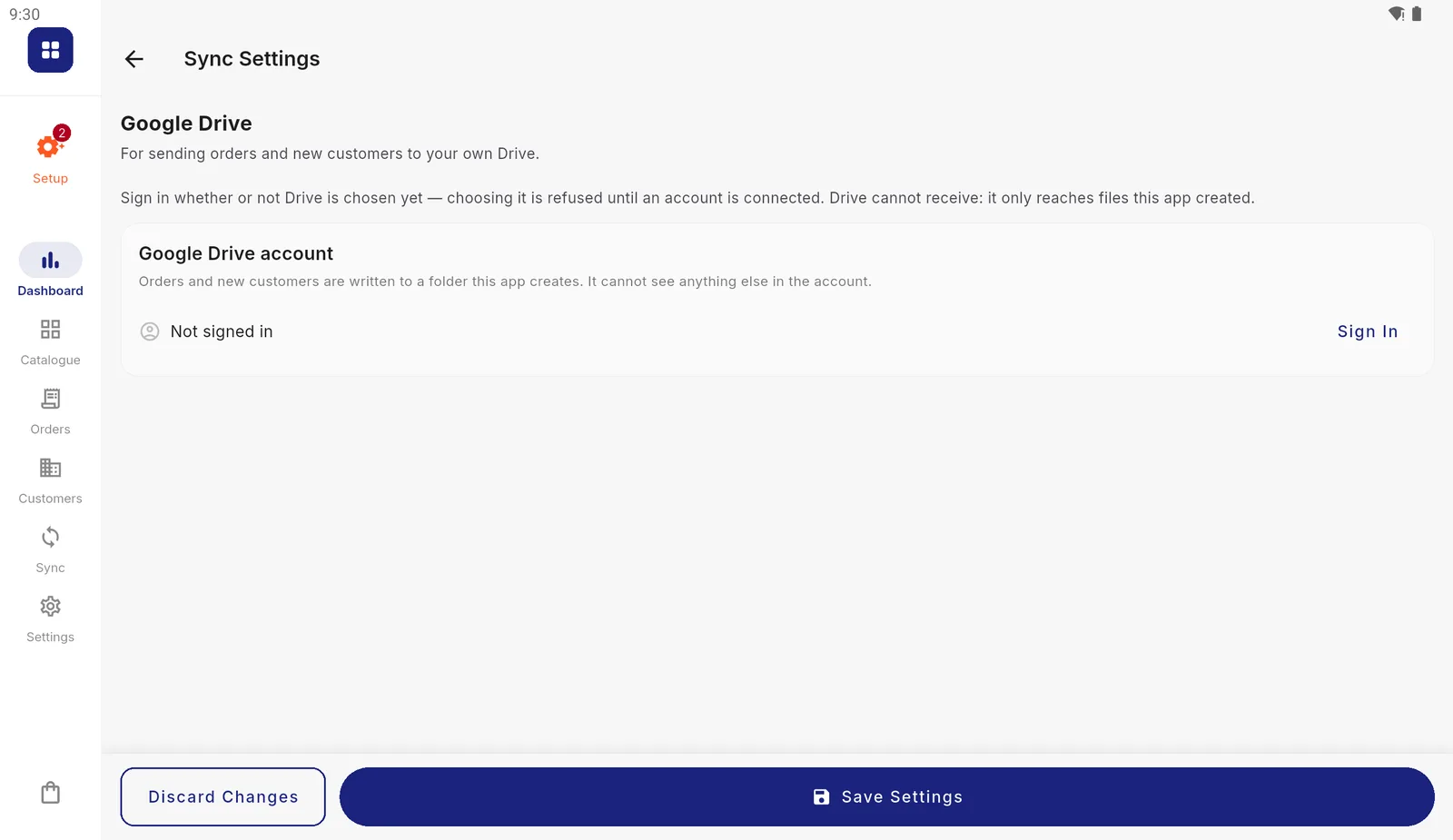
Sign in here first: choosing Drive for sending is refused until an account is connected. Sign in
Press Sign In. Google's own sign-in opens. Choose the Google account the orders should go to, and allow access. Google lists what is being asked for: only files this app creates. The card then shows the account you signed in with.
Choose Drive for sending
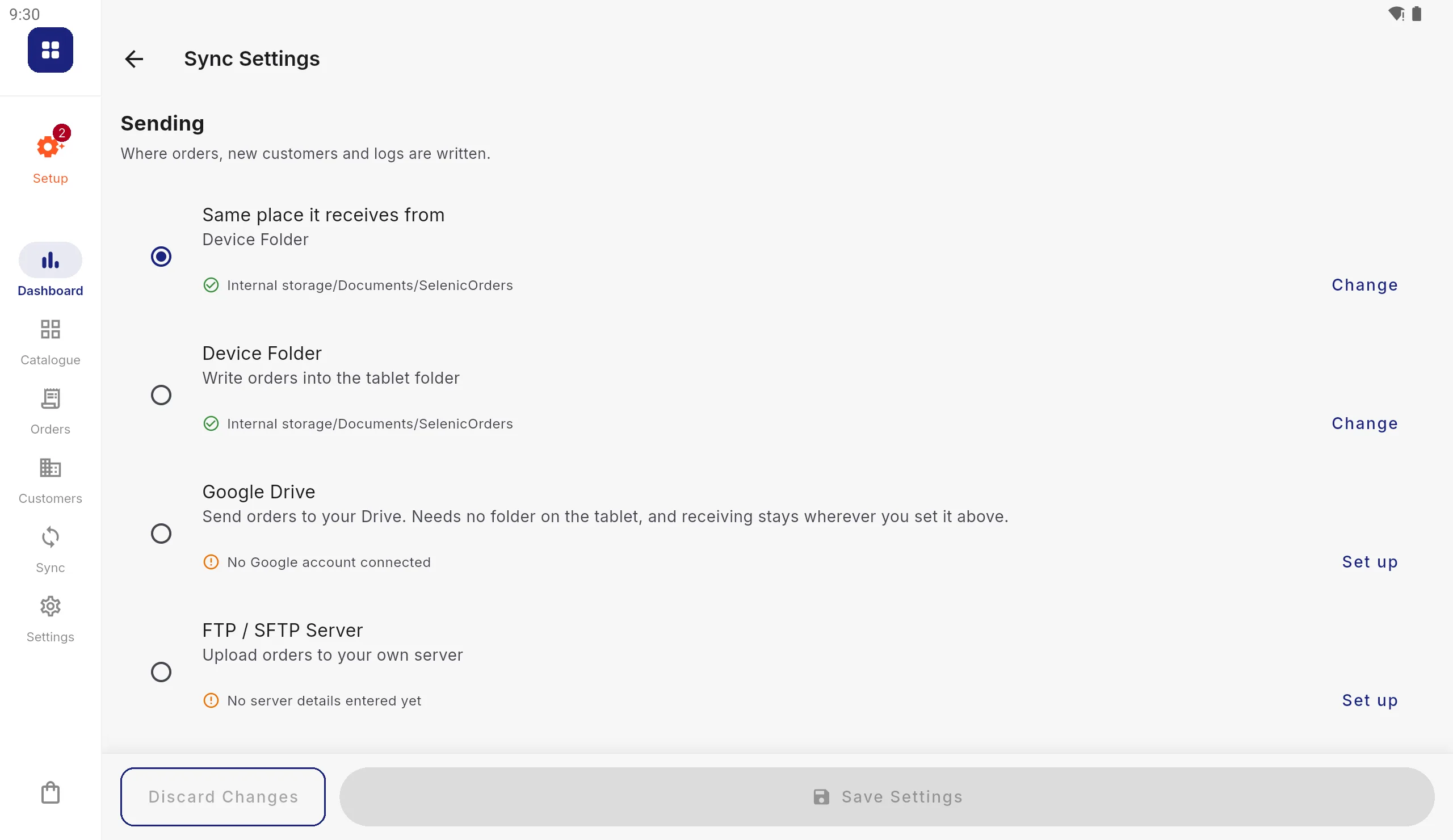
Go back to Sending and choose Google Drive. Receiving stays where it is.
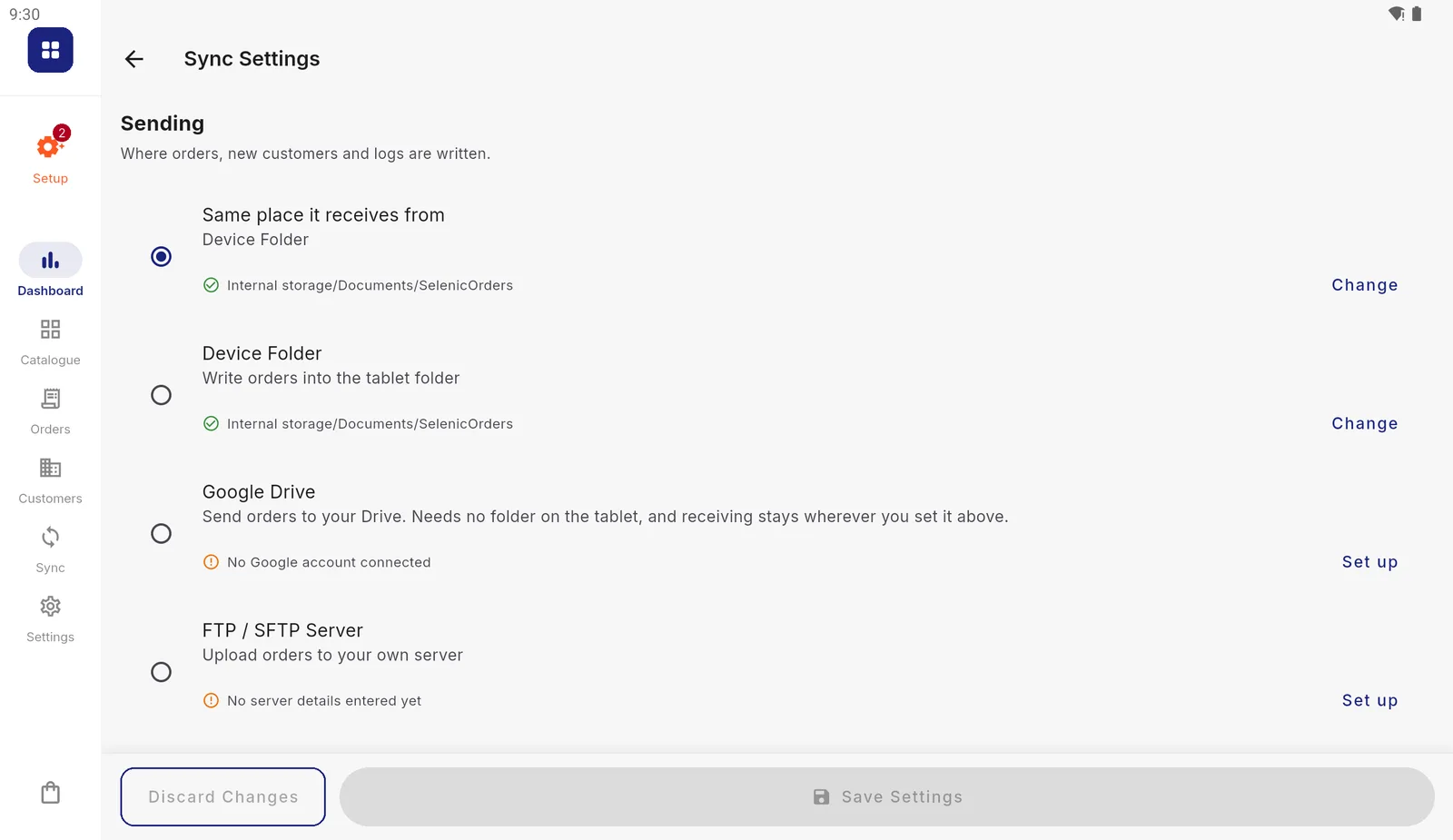
Every way orders can leave the tablet. Drive appears here and nowhere under Receiving. Read the note, then save
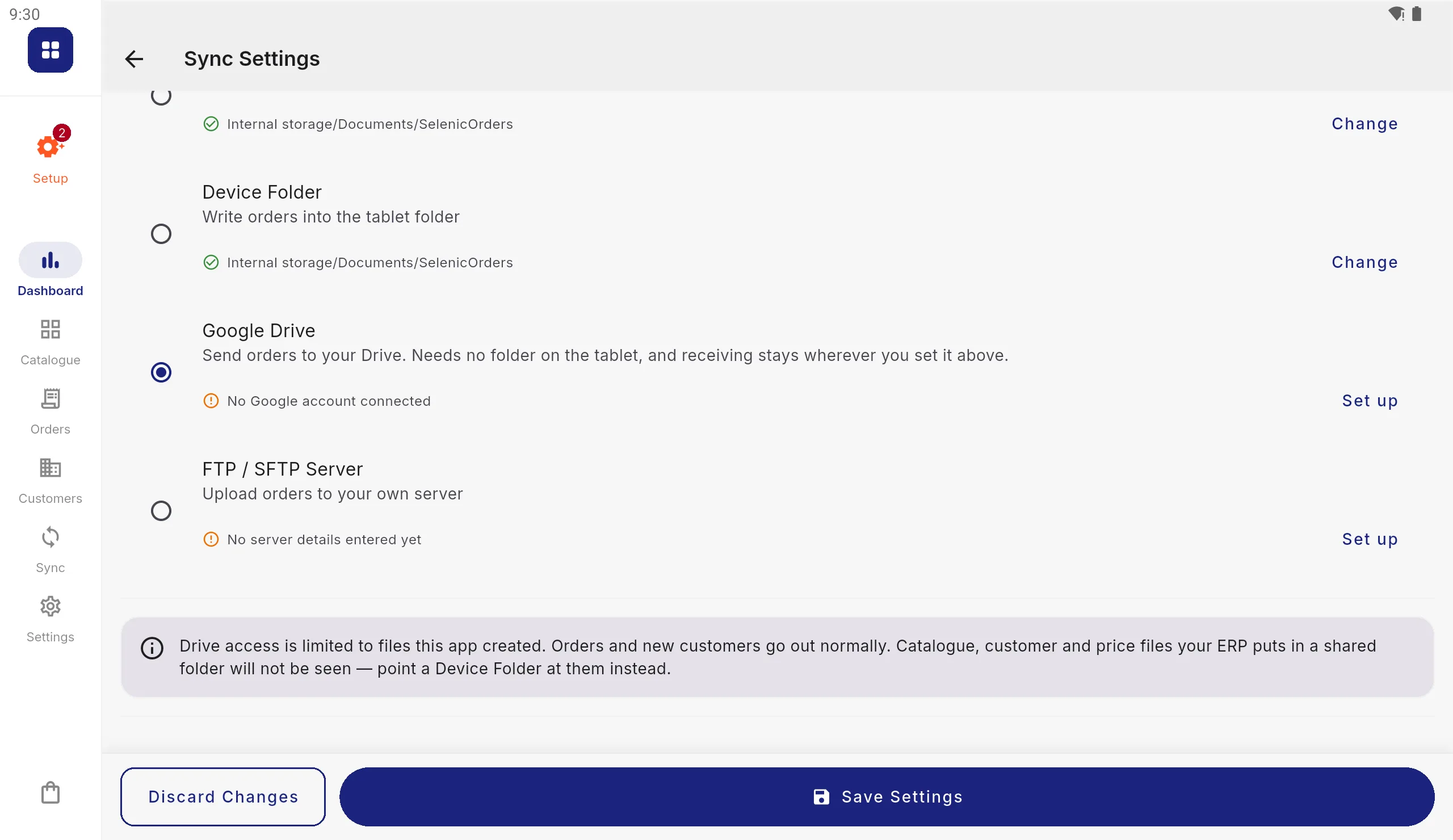
The app repeats the limit under the choices: orders and new customers go out normally, and catalogue files are not seen. Press Save Settings.
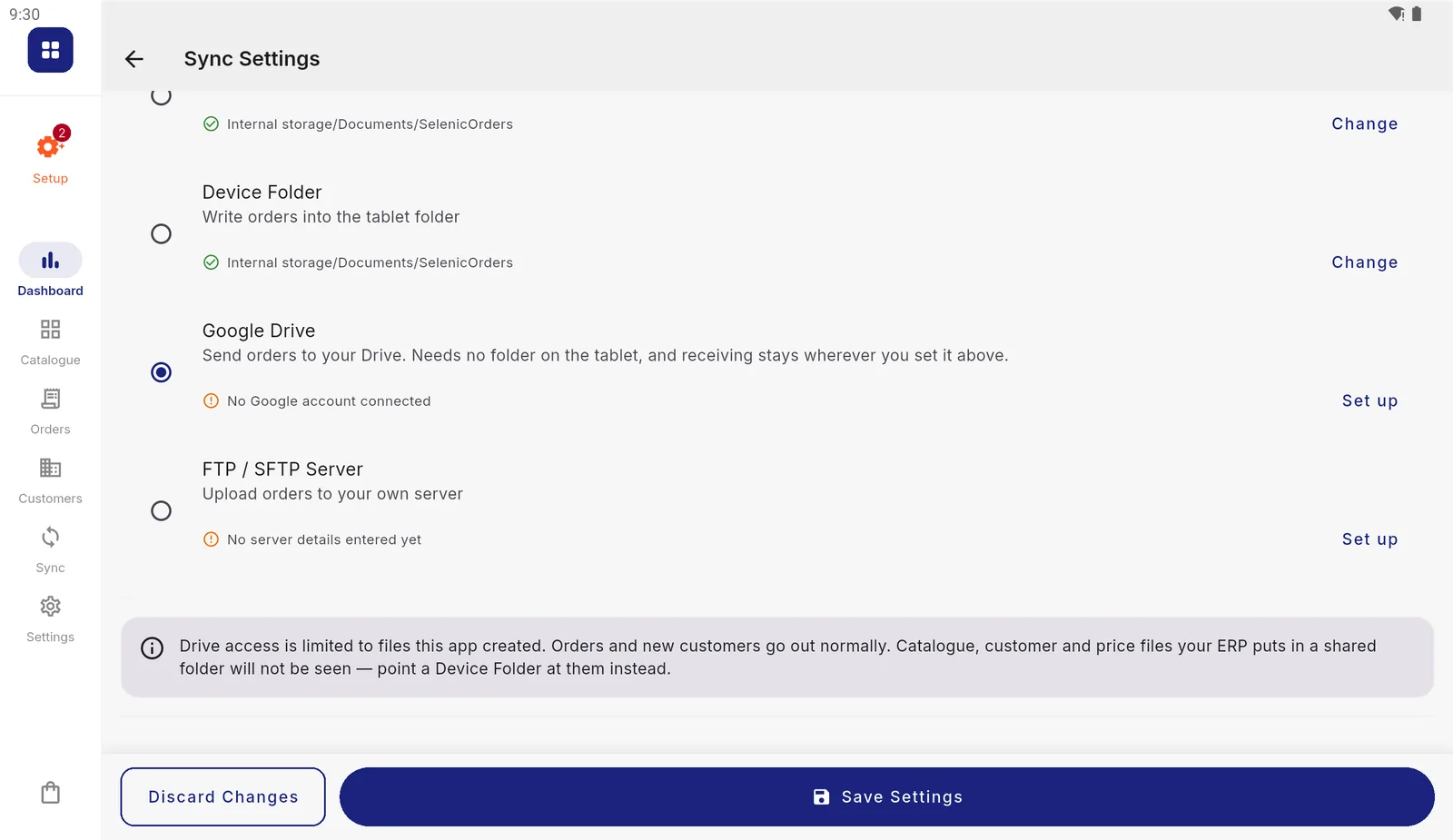
The note the app shows whenever Drive is chosen. Sync
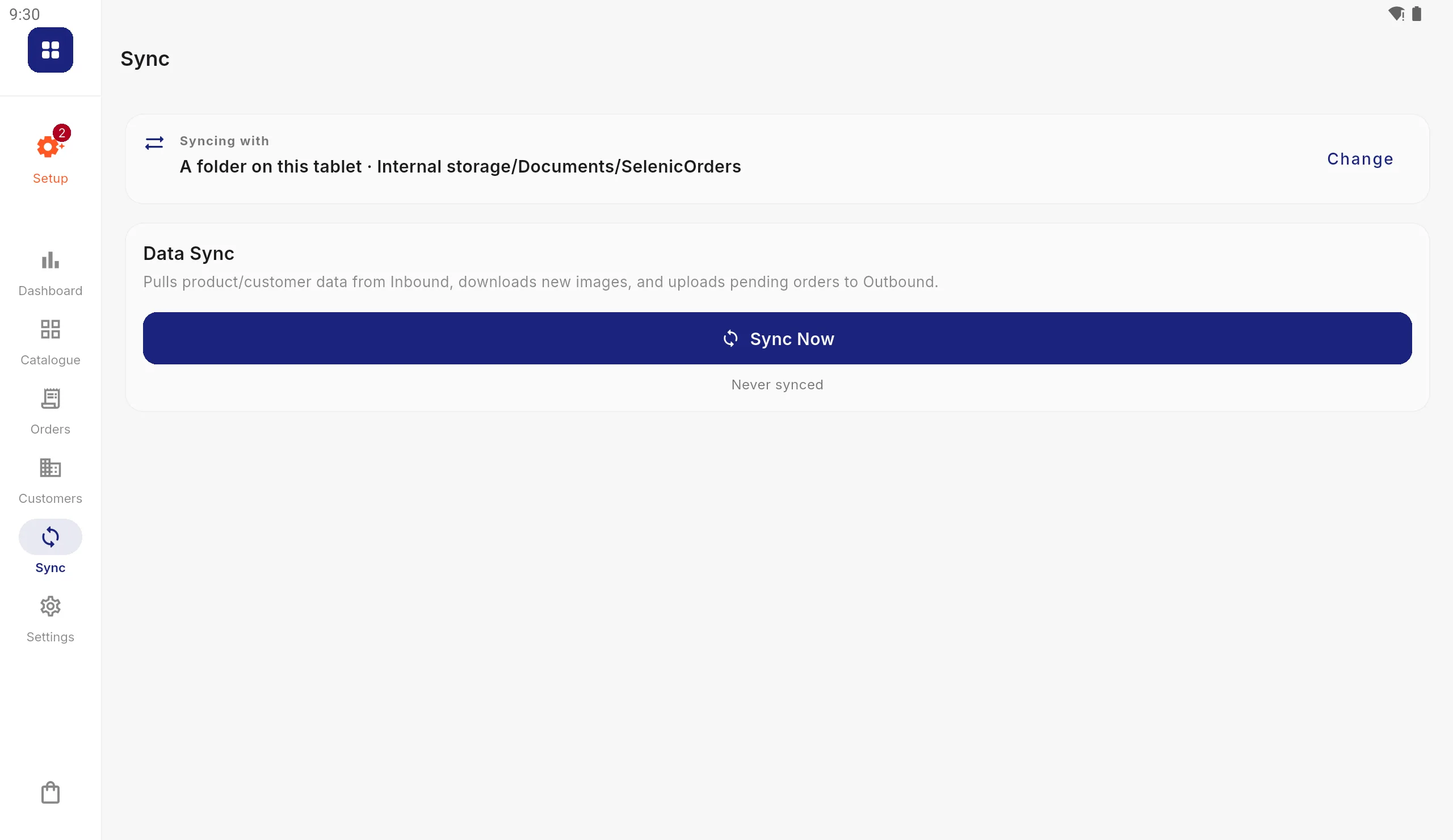
On the first sync to Drive the app asks before creating its folder: press Create & Continue. A folder called
SelenicOrdersappears at the top of My Drive, and each sync puts orders inSelenicOrders/Outbound.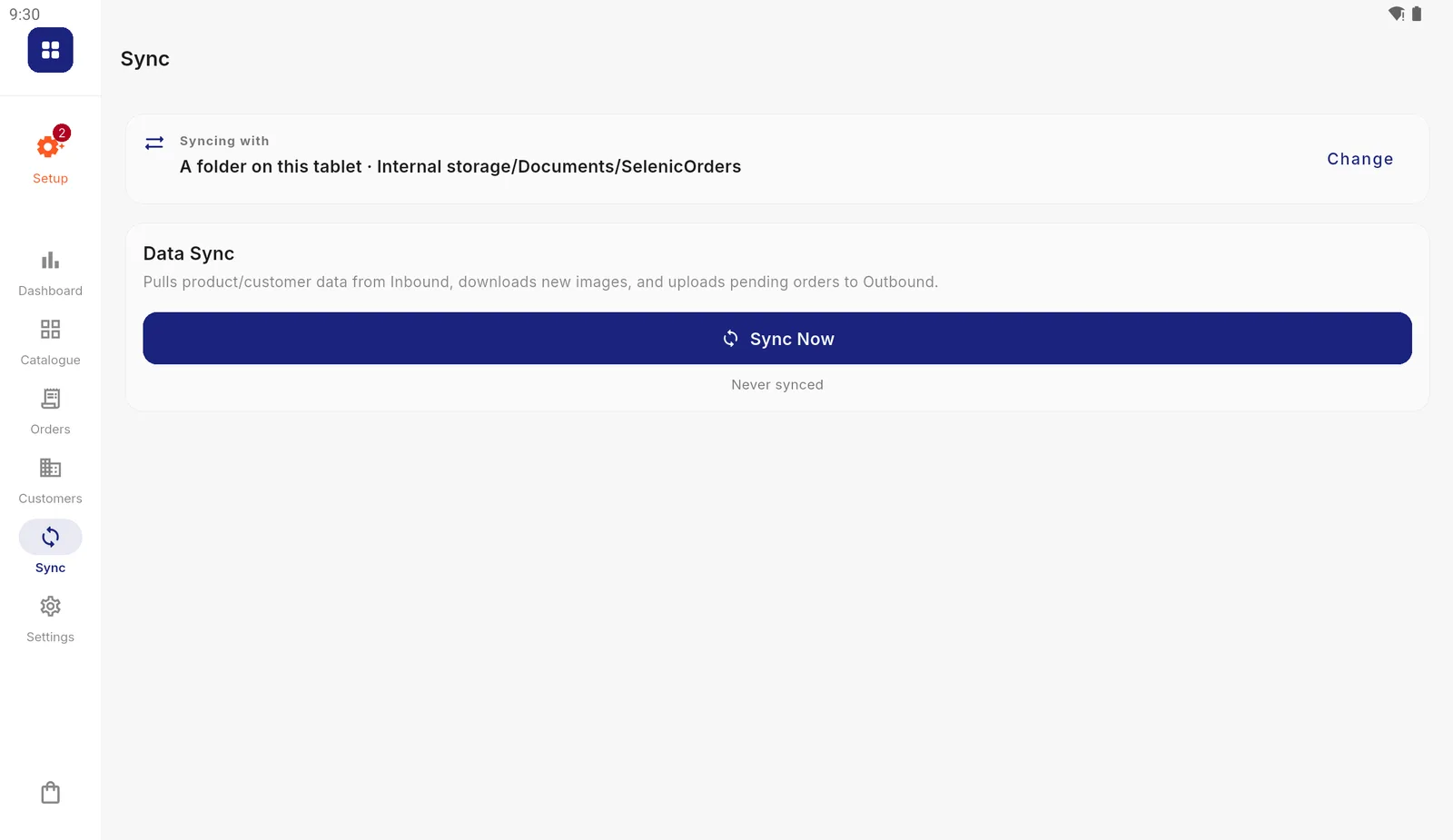
Sync as normal. Orders go to Drive; the catalogue still comes from the folder or server.
Each tablet signs in separately. A Google sign-in is never part of the settings shared between tablets, and it is not kept if the app is removed.
For your IT person
- The app asks for Google’s
drive.fileaccess only: files the app created. It never asks for full Drive access. - Orders arrive as files in
SelenicOrders/Outboundin the signed-in account’s My Drive, named as described in Connecting your ERP. Collect them from there with Drive for desktop or the Drive API. - Files you add to those folders yourself are invisible to the app, which is the same limit seen from the other side. Do not try to deliver the catalogue through them.
- Moving
SelenicOrdersto the bin does not stop orders arriving: the app makes a new one at the next sync.
If it does not work
| What you see | Why, and what to do |
|---|---|
| “No Google account connected” under Sending | Sign in on the Google Drive page first |
| Sign-in closes and nothing changes | Sign-in was cancelled, or the tablet has no Google account. Add one in Android’s settings, then try again |
| The catalogue does not update | Drive cannot supply it. Choose Device Folder or FTP / SFTP Server under Receiving |
| Orders went to the wrong Google account | Press Sign Out on the Google Drive page and sign in with the right one |