Connect a folder on the tablet
The simplest way to connect Selenic Orders, and the one to start with. Your system’s files land in a folder on the tablet; the app reads them from there and writes your orders back beside them. There is no account to sign in to.
How the files get into the folder is up to you. A sync app such as OneDrive, Dropbox or Google Drive’s own app keeping a folder in step with your office; a PC the tablet is docked to; or someone copying files across. The app only needs to be told which folder.
You need the tablet in your hand for about two minutes. Android asks for permission once, and remembers it.
Before you start
Make the folder first, or let a sync app make it. Any name will do; this
guide uses SelenicOrders inside Documents. If a sync app is keeping the
folder in step, check it holds a copy on the tablet rather than only showing
it online, or the app will find it empty.
Step by step
Open Receiving
Go to Settings › Data Integration › Sync & Integration › Receiving, or tap Where your data comes from on the setup checklist. Device Folder is chosen already. Press Set up beside it.
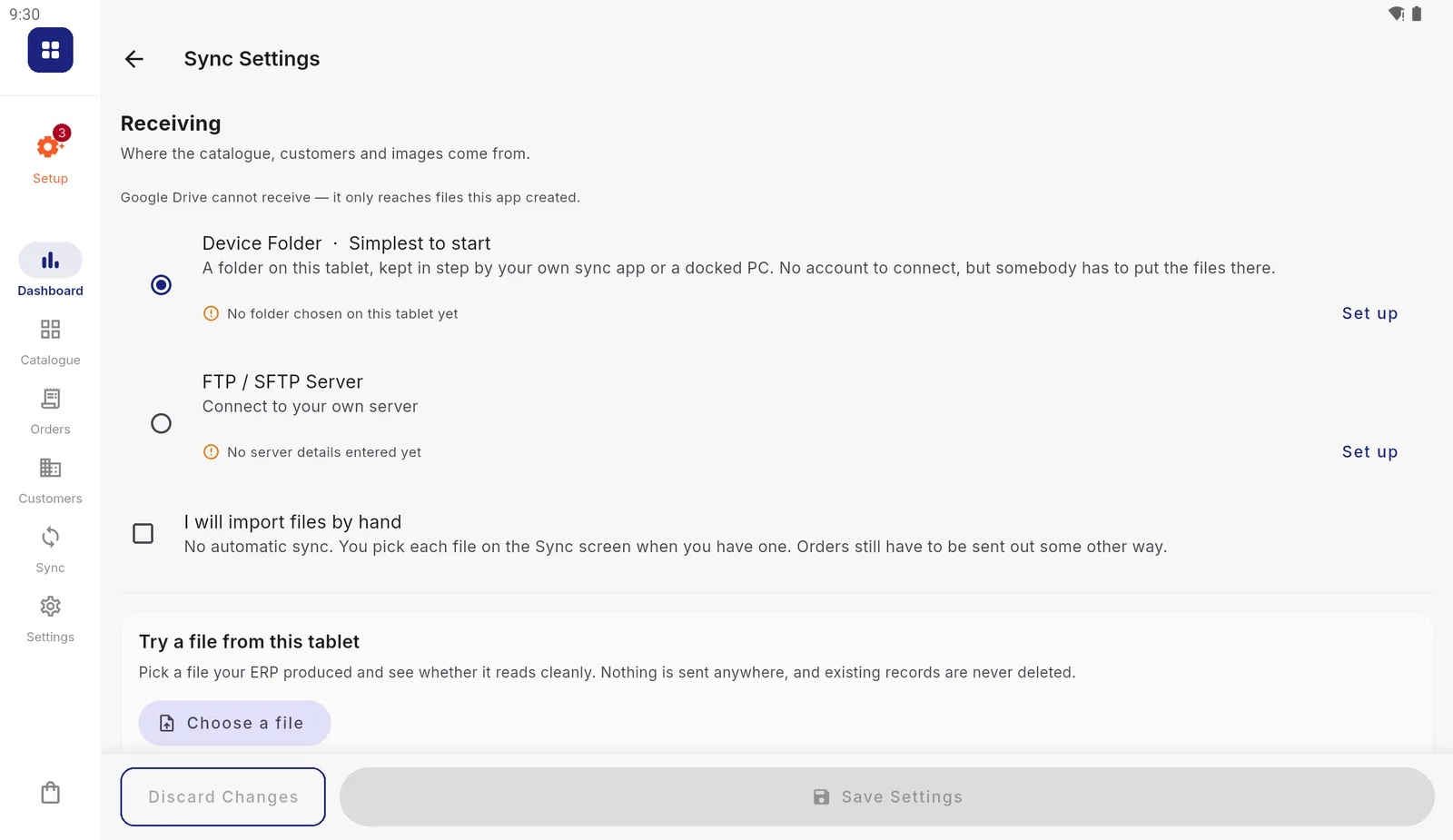
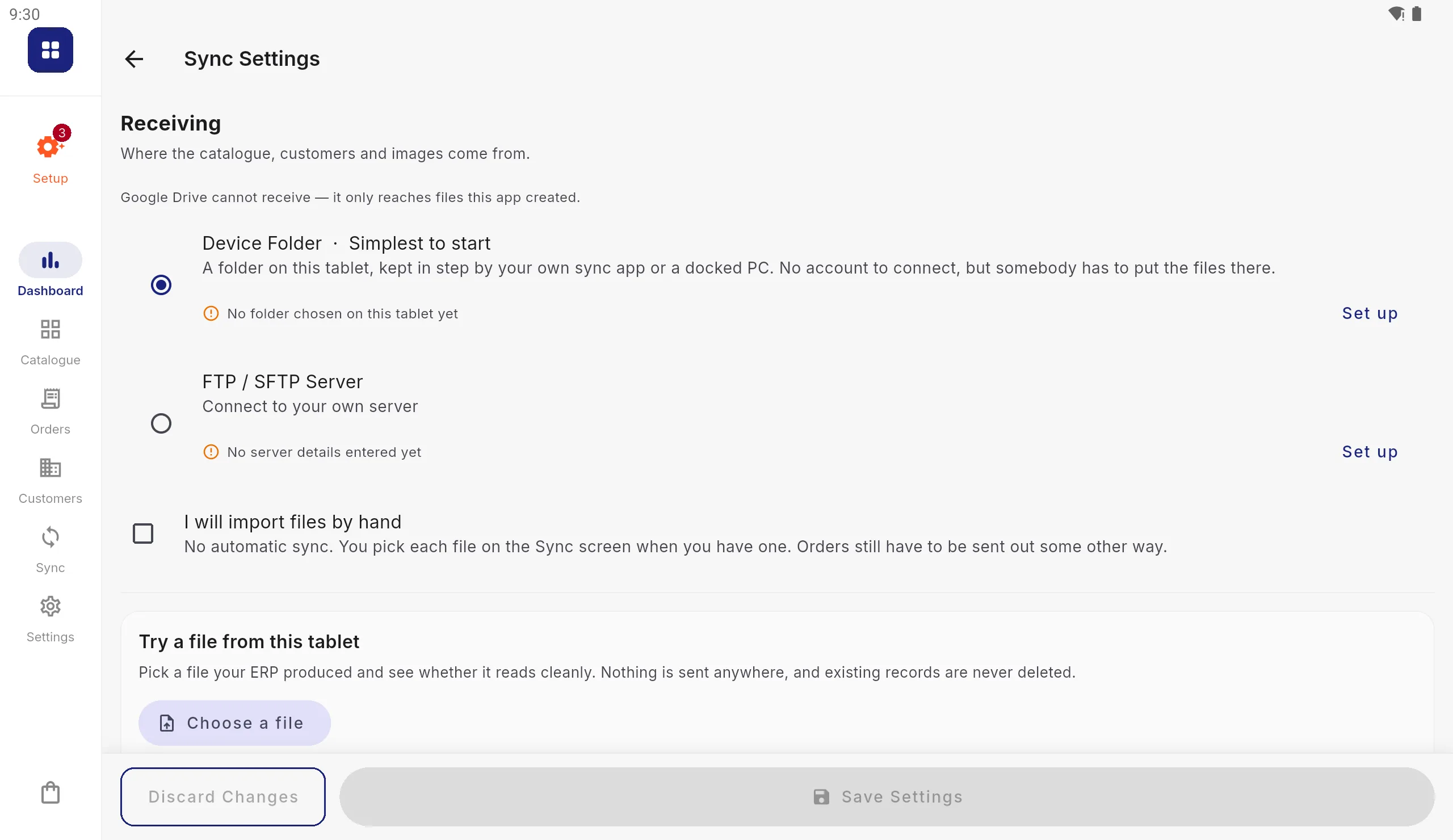
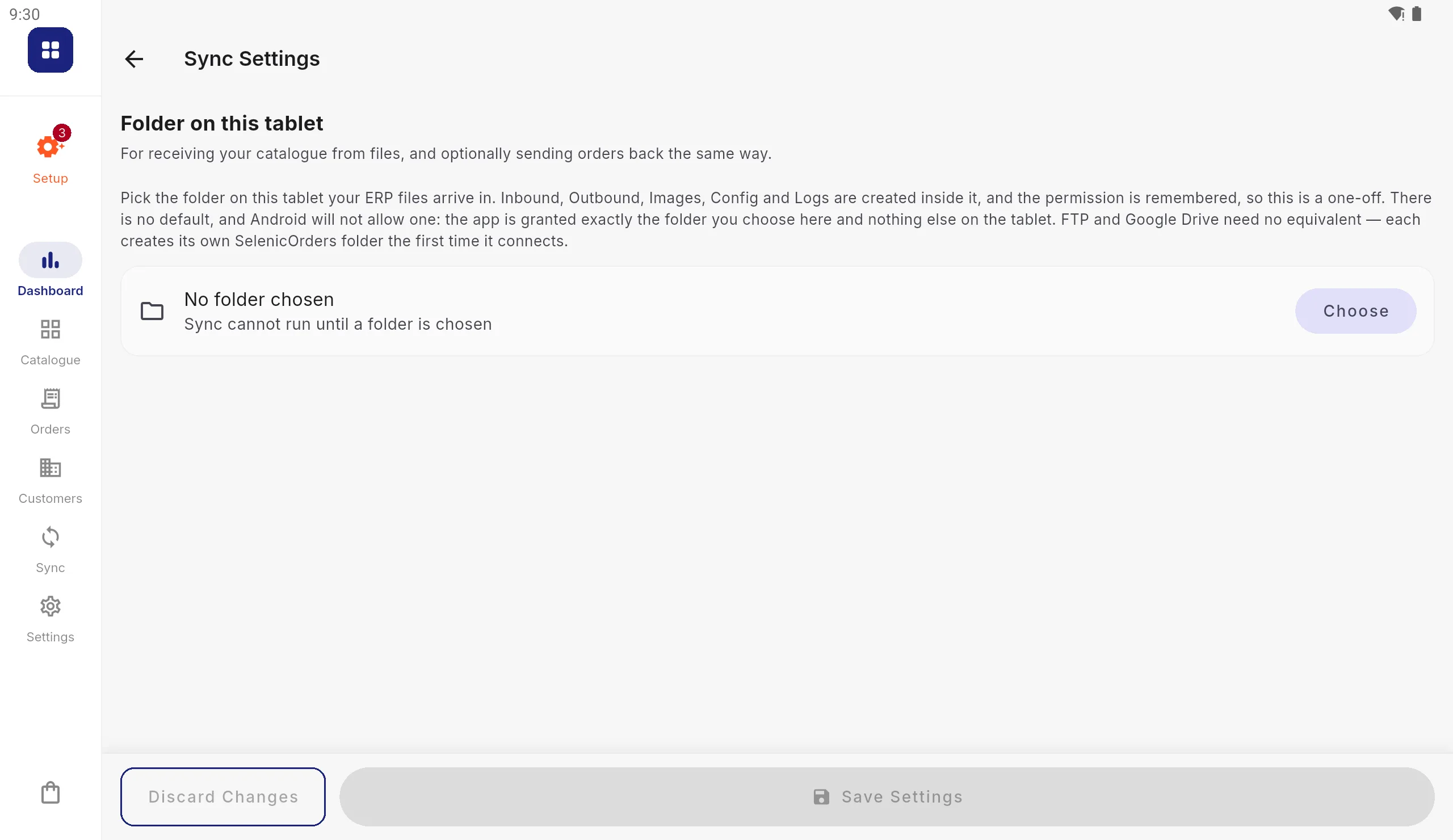
Device Folder is the first choice. Until a folder is chosen it says so in orange. Press Choose
The Folder on this tablet page explains what will happen. Press Choose. Android's own folder picker opens.
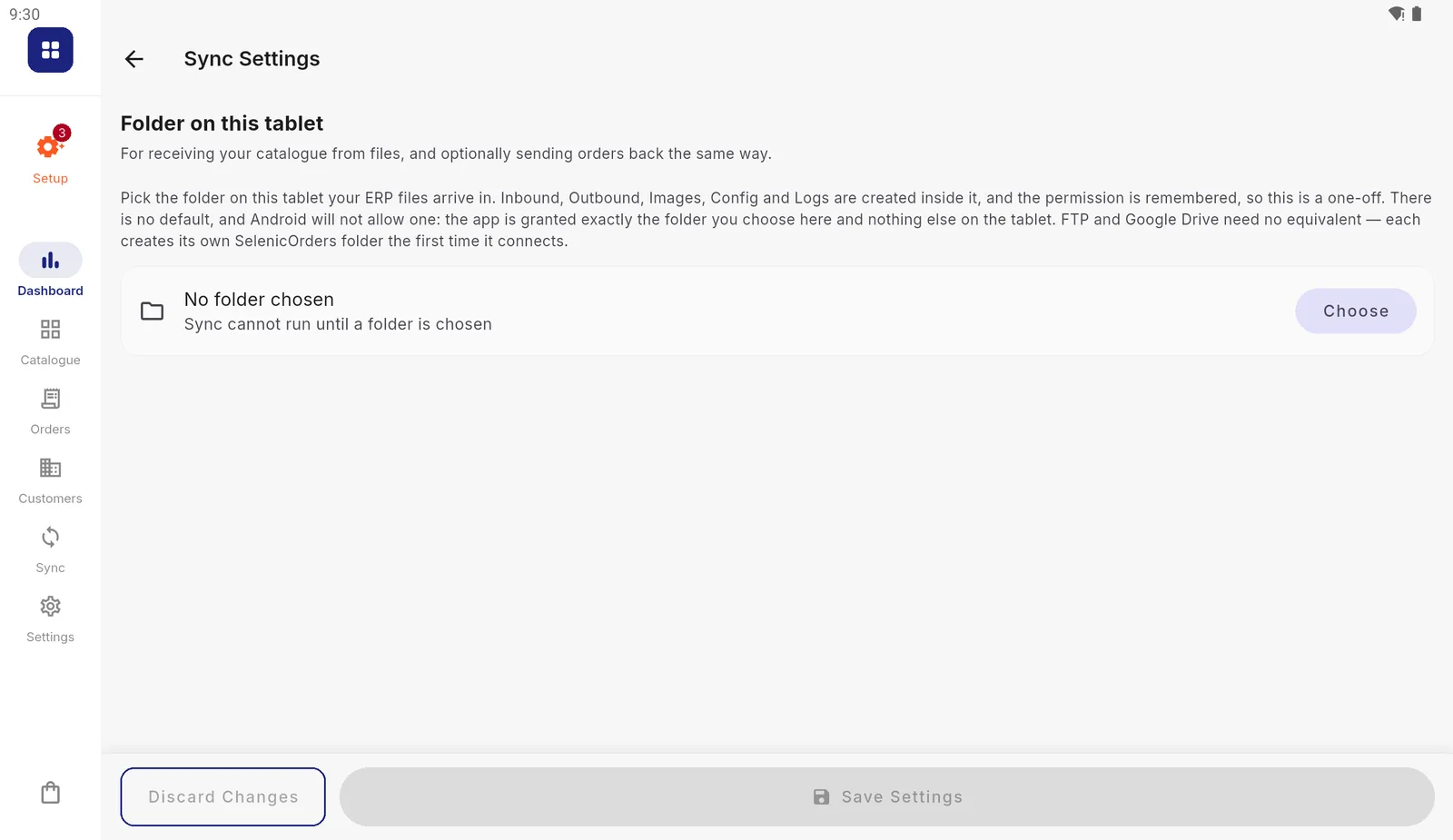
The app is given exactly the folder you choose and nothing else on the tablet. Find your folder
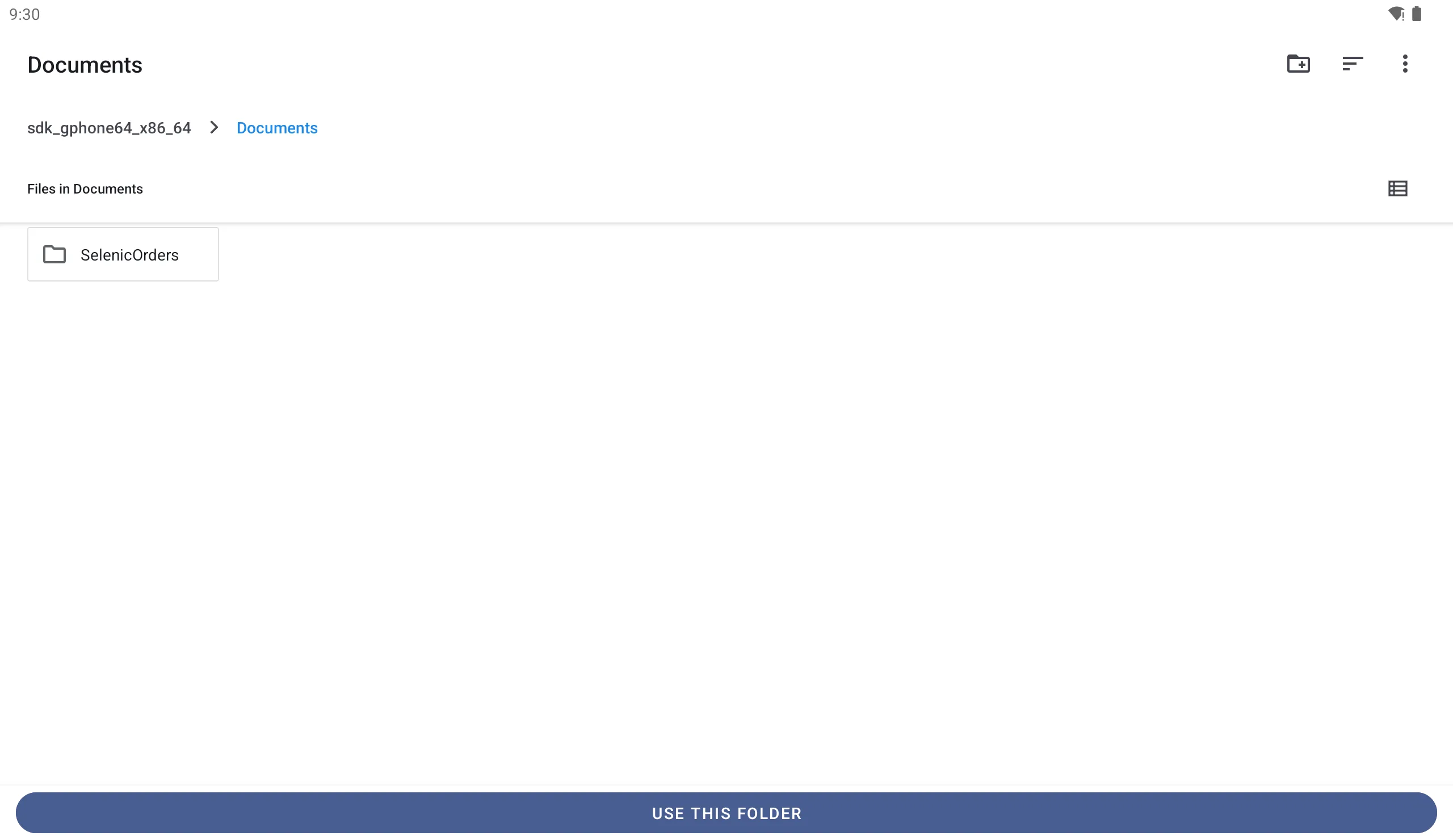
Tap your way to the folder: here Documents, then SelenicOrders. The line along the top shows where you are; the first name in it is your tablet's. If the folder does not exist yet, the icon at the top right with a + makes a new one.
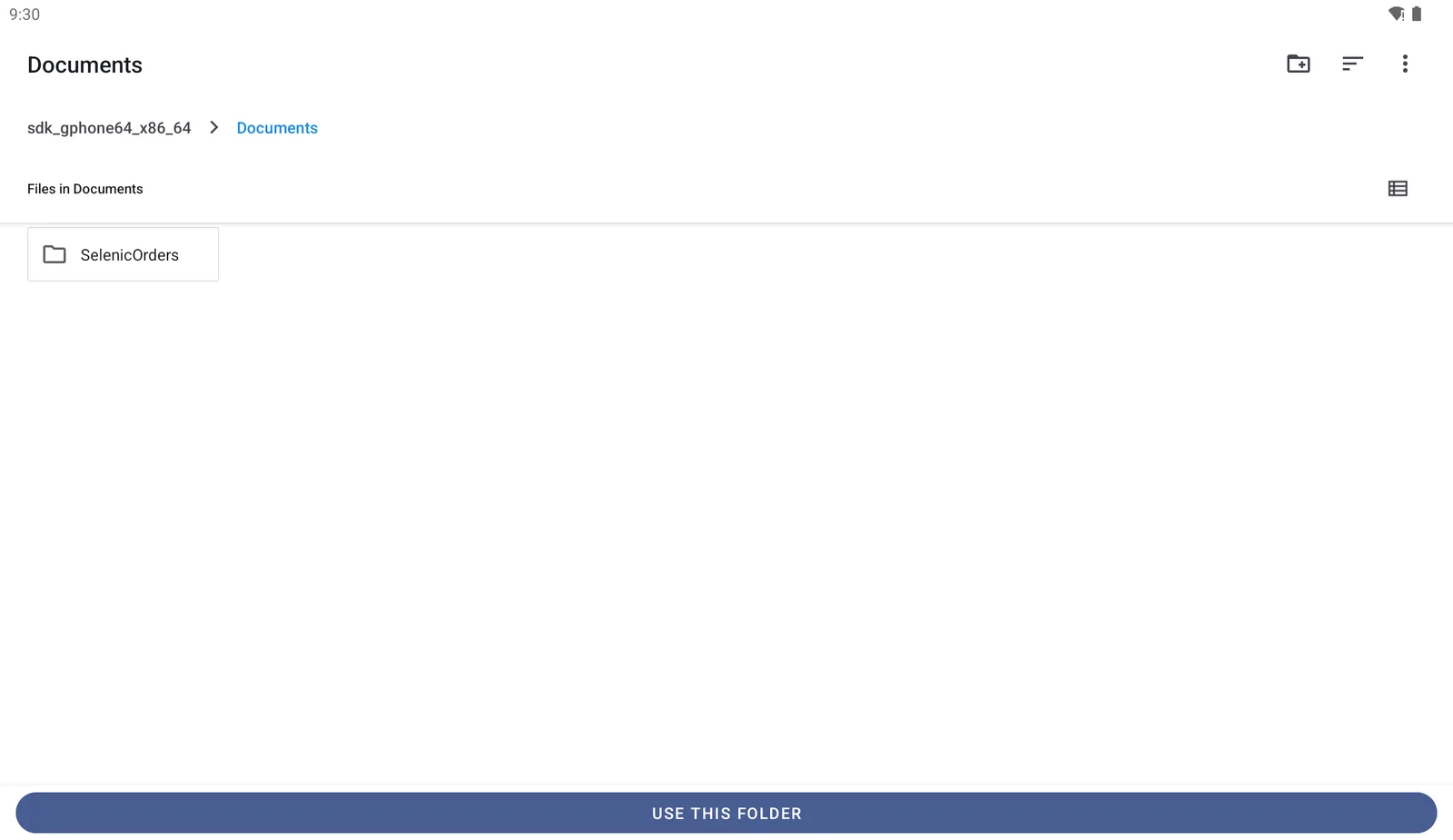
Android's picker, not the app's. It looks slightly different from one tablet maker to another. Press Use this folder
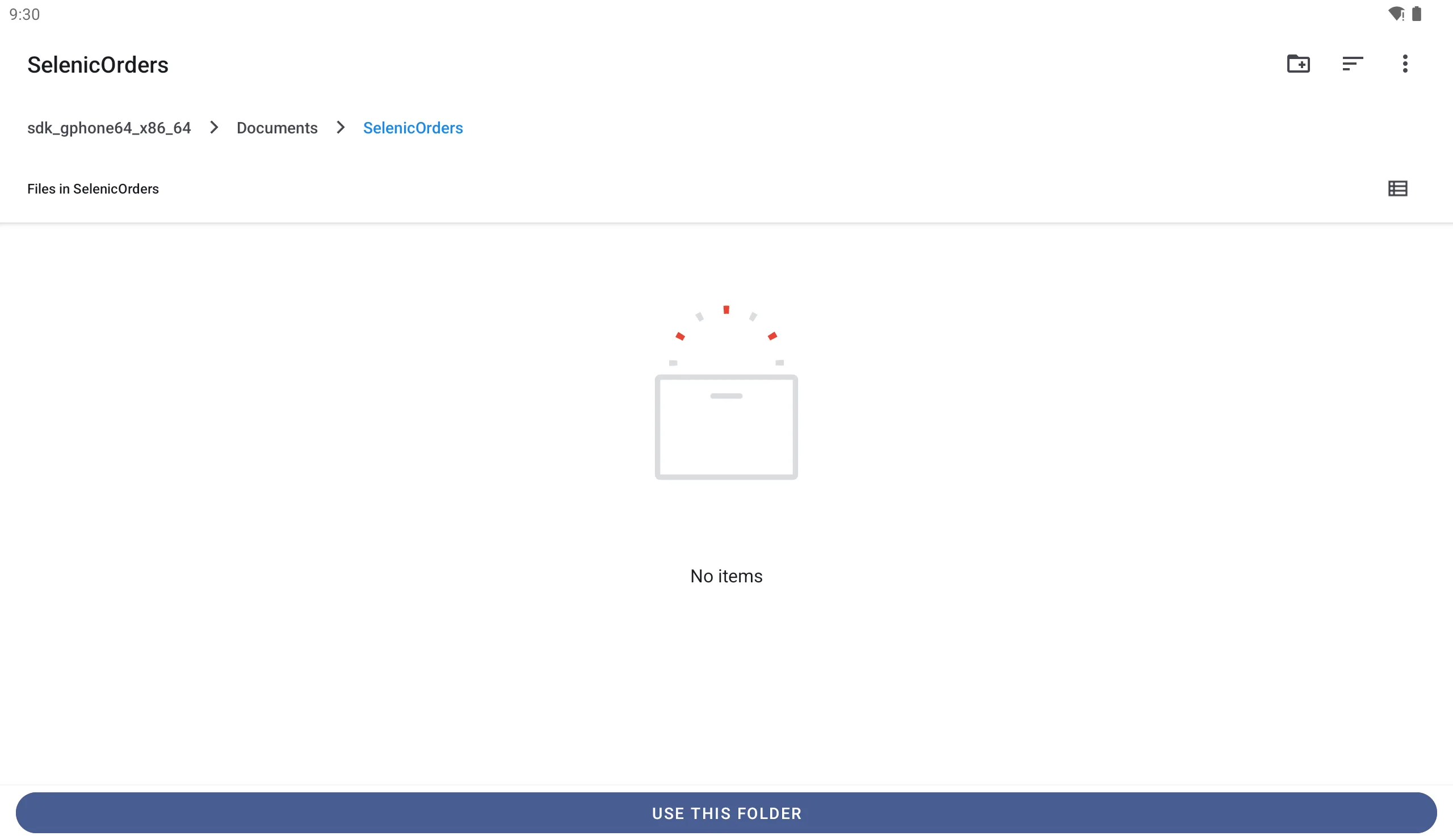
Open the folder itself, so its name is at the top of the picker, and press Use this folder at the bottom. An empty folder is fine.
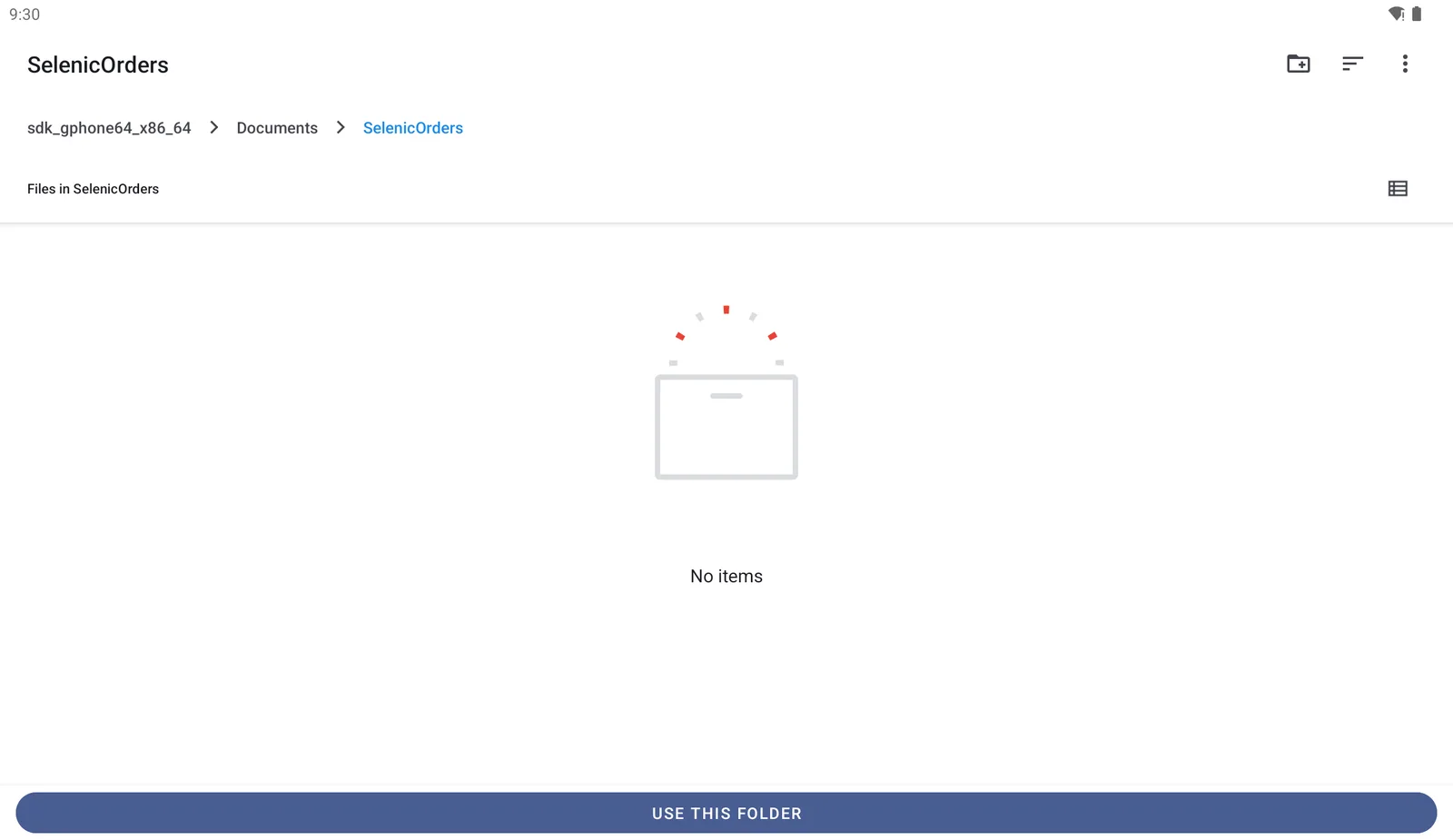
Inside the folder. It is empty until the app sets it up. Press Allow
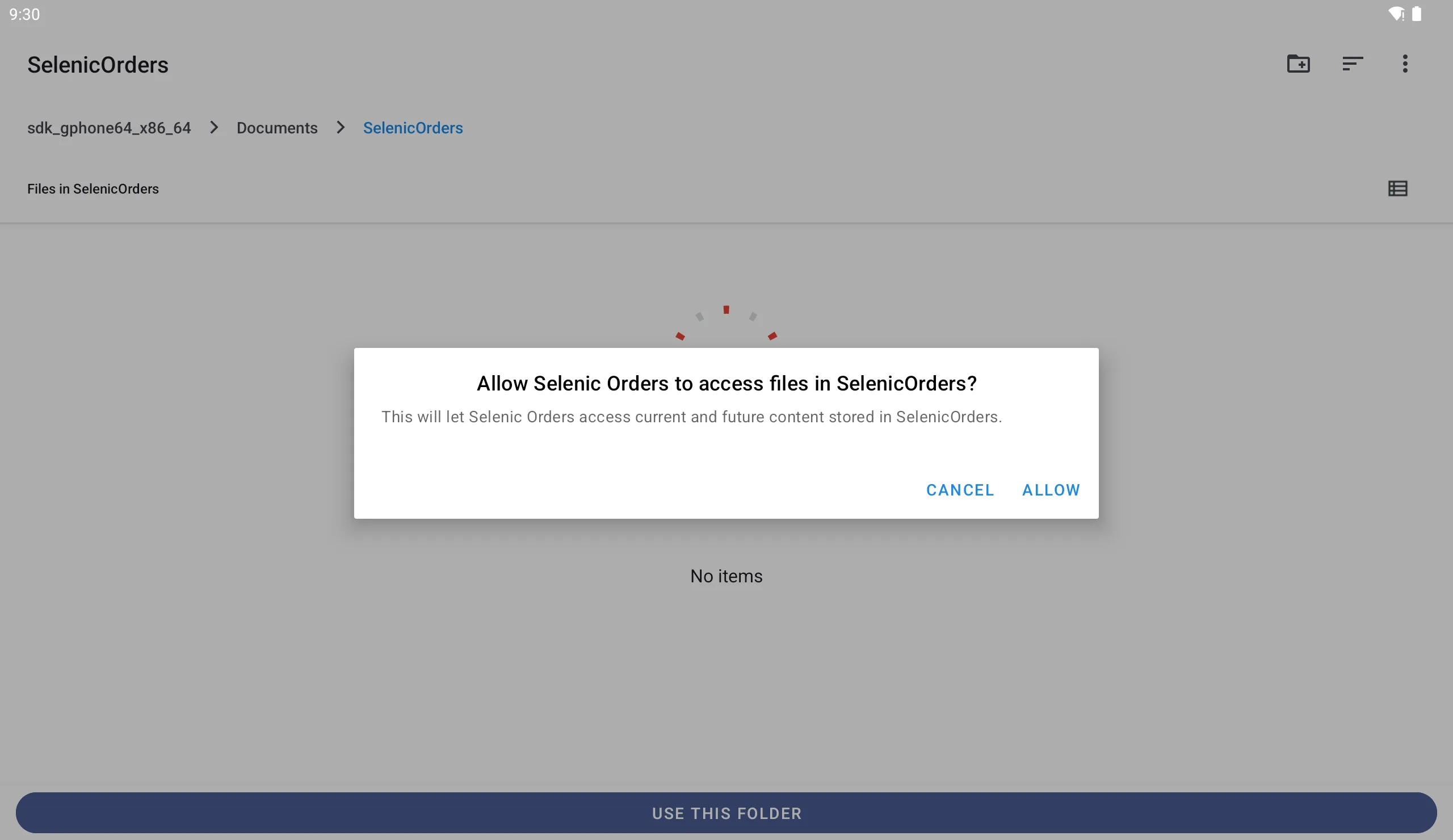
Android asks whether Selenic Orders may use the folder. Press Allow. This is the only time it asks.
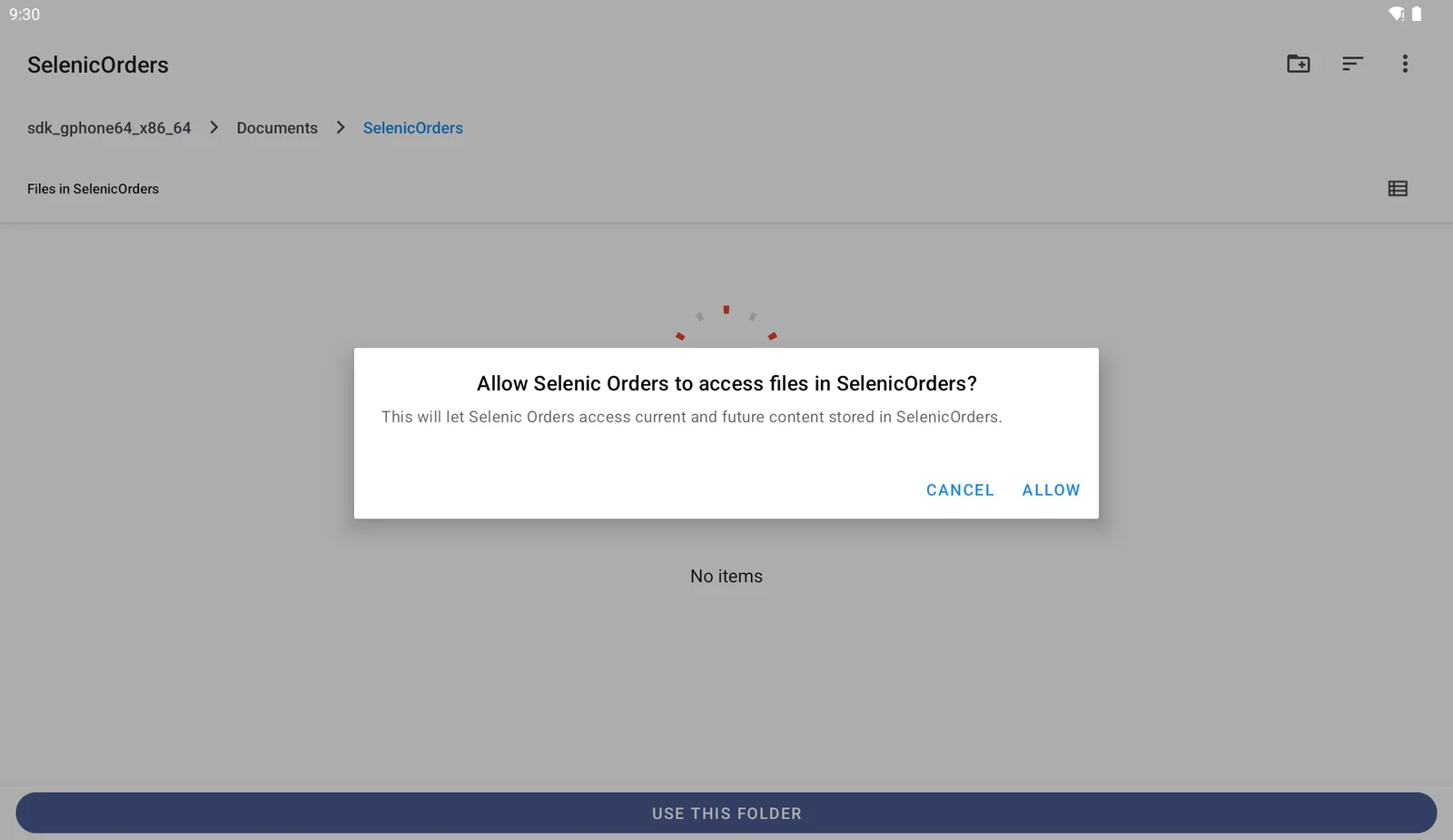
Android's own question. Cancel leaves everything as it was. Check it worked
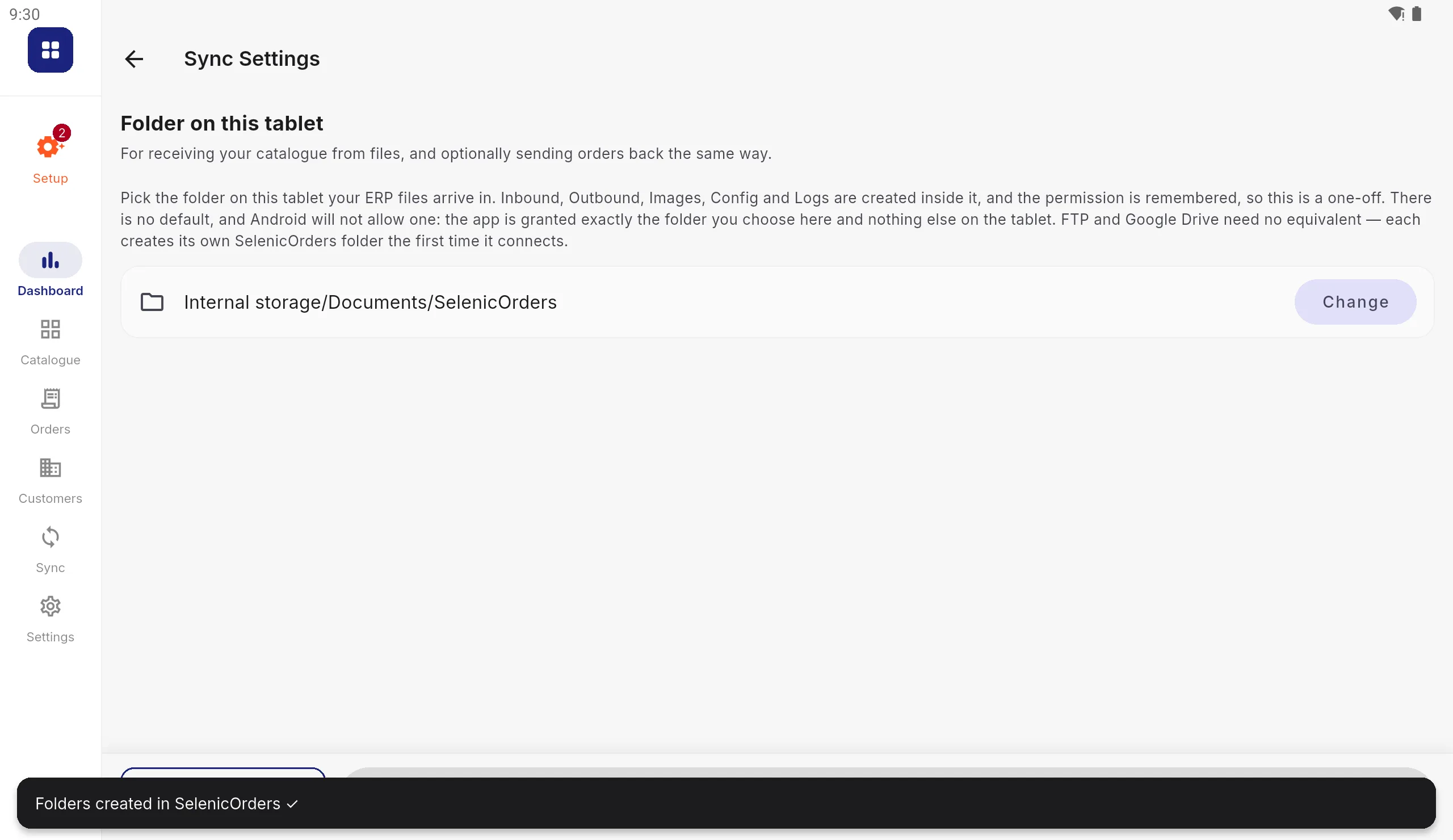
Back in the app, the folder's location is shown and a message says the folders were created. The setting is saved straight away.
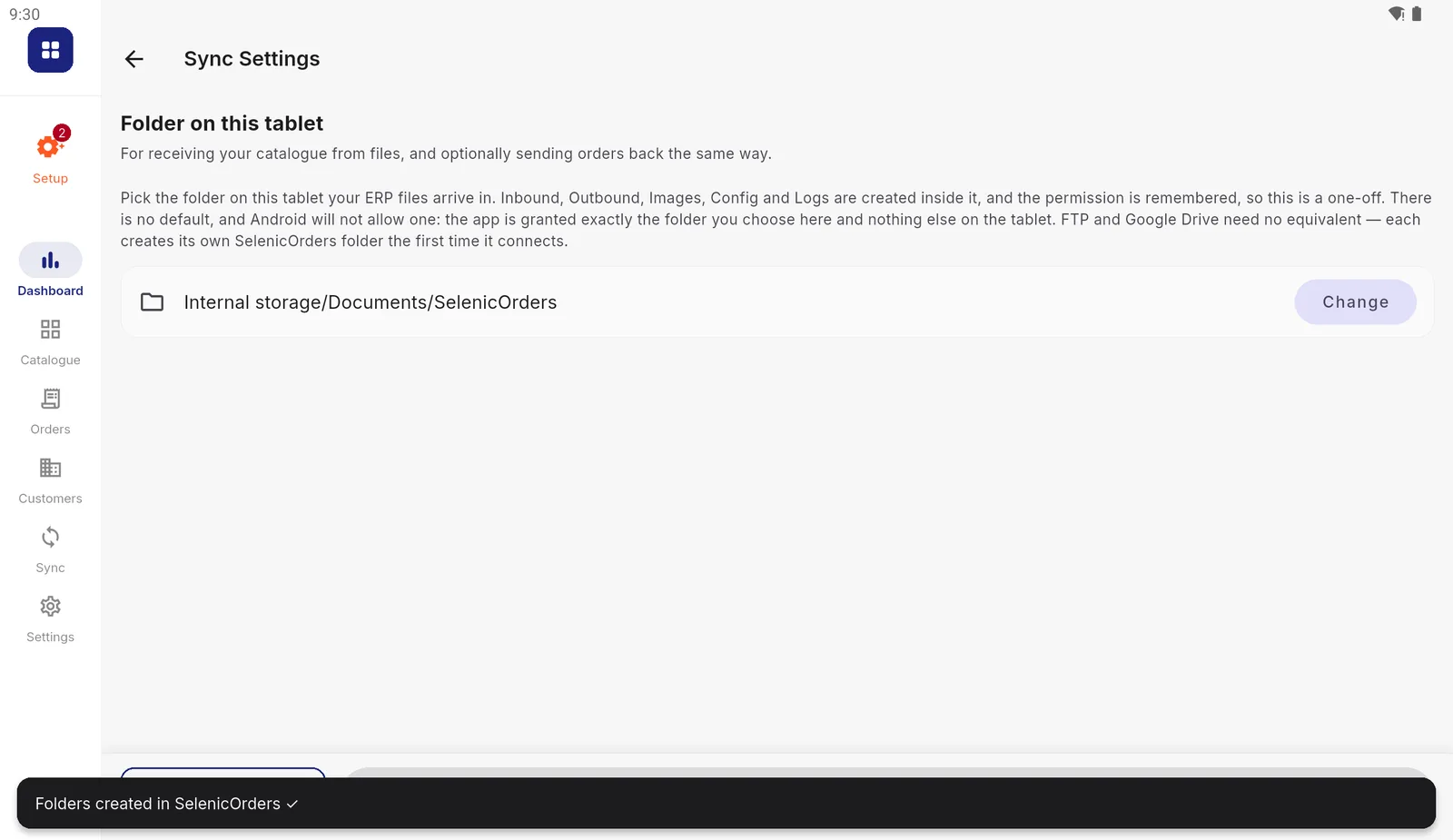
The folder is chosen and the app has set it up. Done
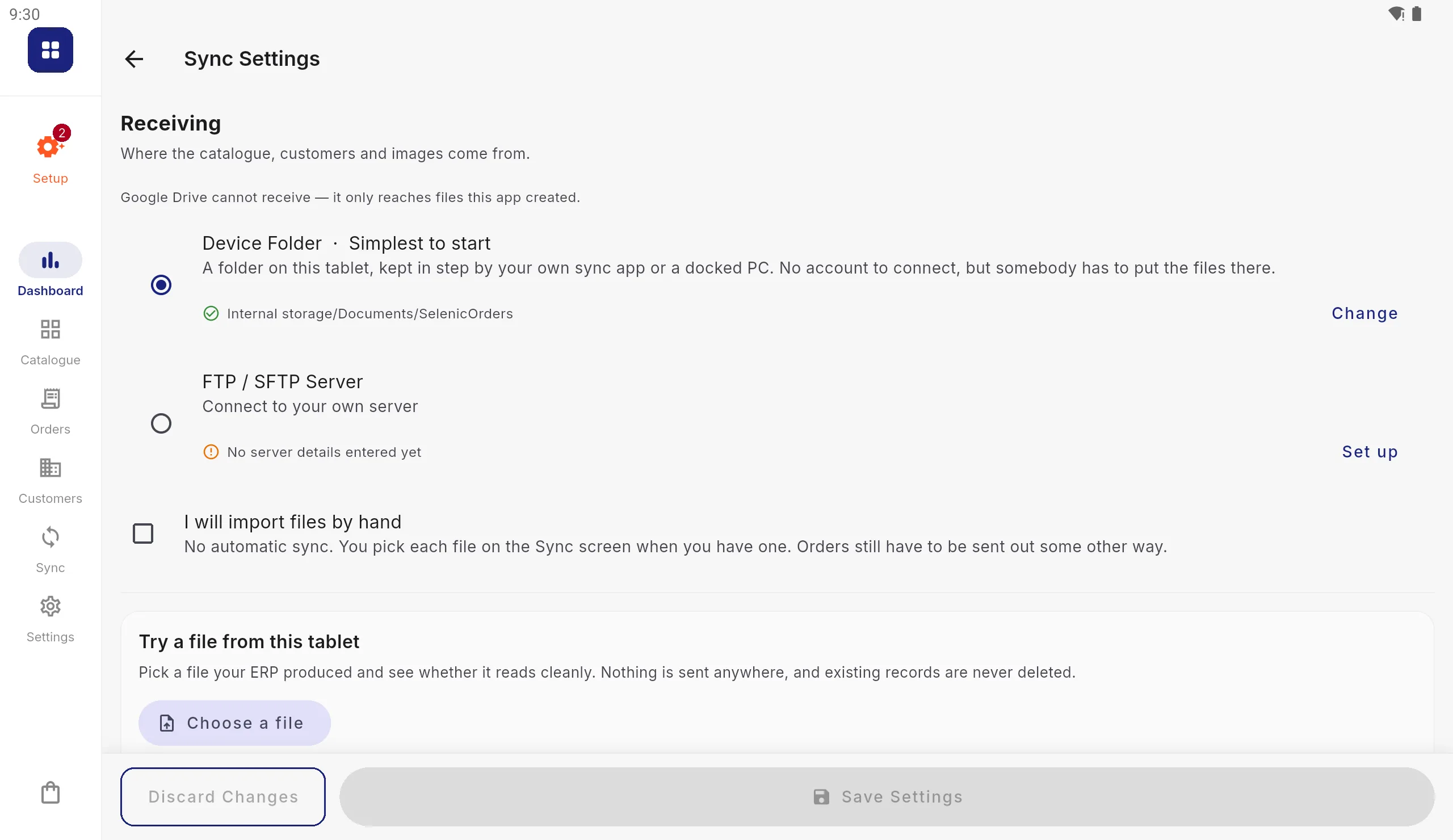
Back on Receiving, Device Folder now has a green tick. Orders go to the same folder unless you choose otherwise under Sending.
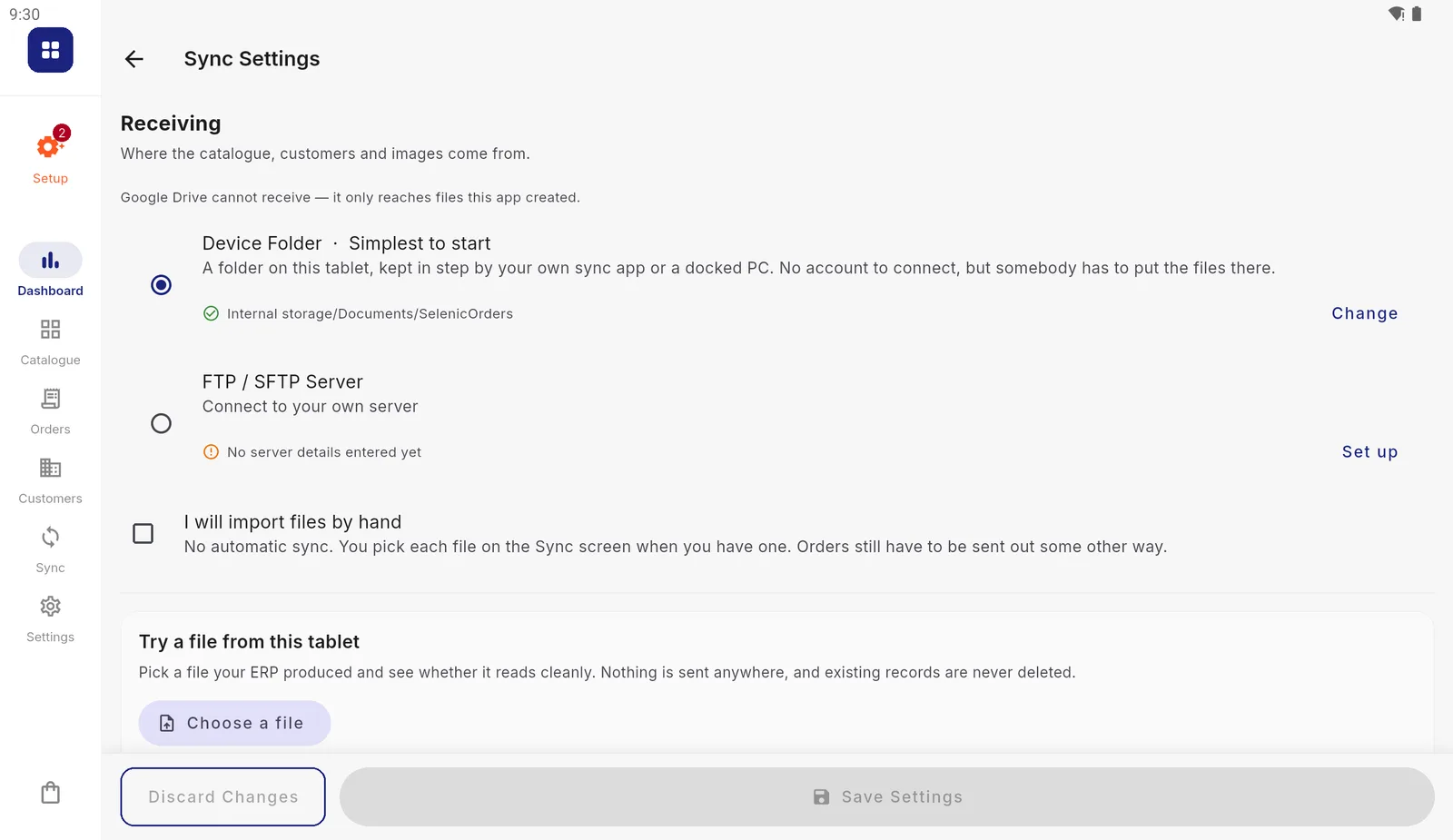
Ready to sync. The setup checklist ticks Where your data comes from too.
What the app puts in the folder
Inside the folder you chose (not in another folder below it), the app creates:
| Folder | Direction | What goes in it |
|---|---|---|
Inbound | Your system writes | Catalogue and customer files for the app to read |
Images | Your system writes | Product and category pictures |
Outbound | The app writes | Orders and new customers, for your system to collect |
Config | Both | Settings shared between tablets |
Logs | The app writes | What each import did |
It also writes sample files, named starting _SAMPLE_, into Inbound and
Outbound. They show the columns the app expects and the files it will send.
The app never imports a file whose name starts _SAMPLE_, so they can stay.
The same files are on the file formats page.
For your IT person
- The app uses Android’s Storage Access Framework, so it holds a permission for that one folder rather than for the tablet’s storage. It does not ask for “All files access”.
- A file put into the folder by another app is visible to Selenic Orders through that permission, which is the whole point. Without it Android hides other apps’ files.
- The permission belongs to this tablet. It is not part of the settings that travel between tablets, so each tablet chooses its own folder once.
- Name files as described in Connecting your ERP: the app decides what a file holds from its name.
- Write each file under a temporary name and rename it when complete, so a sync never reads half a file.
If it does not work
| What you see | Why, and what to do |
|---|---|
| “No folder chosen on this tablet yet” | Step 5 was cancelled. Press Choose again |
| “The chosen sync folder is no longer available” | The folder was deleted or renamed, or the permission was removed. Press Change and pick it again |
| The sync reads nothing | Files are not in Inbound, or their names match nothing. The sync log names every skipped file |
| The folder looks empty to the app but not in your sync app | Your sync app is showing files that are only online. Set it to keep that folder on the device |